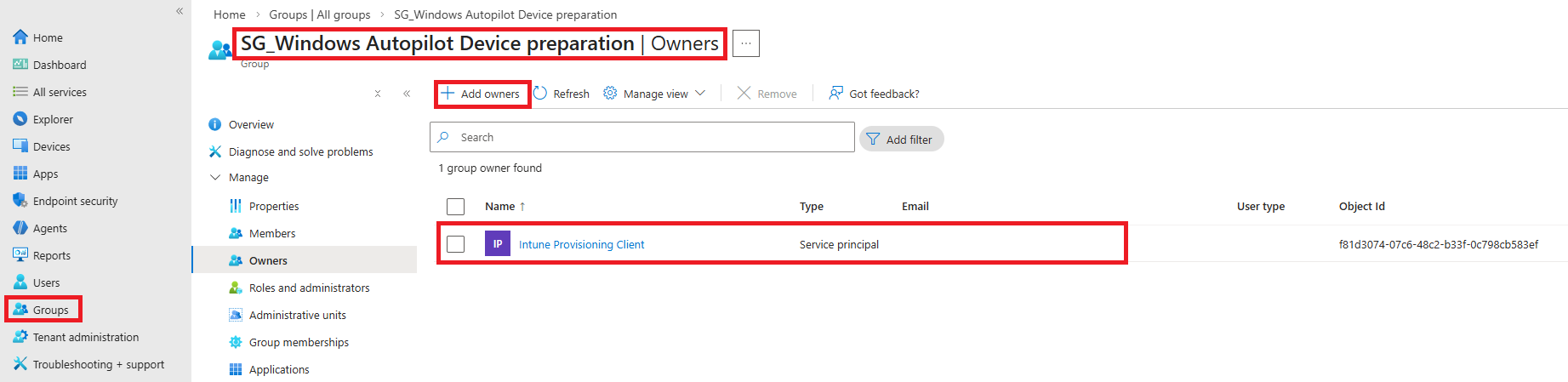
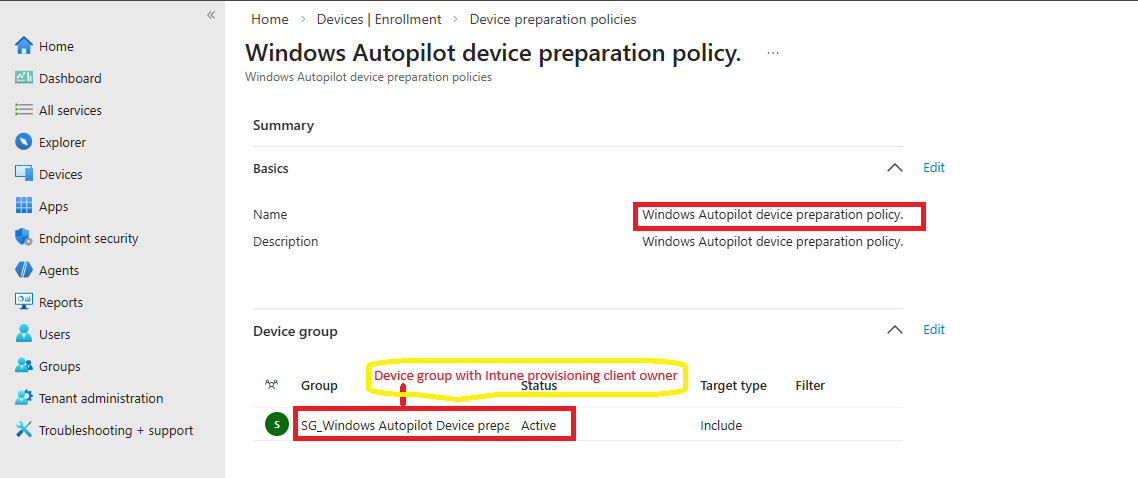
Don't skip: The device group must have Intune provisioning-client as owner – otherwise devices won't receive the preparation profile.
What is Autopilot v2 Device Preparation?
A modern enrollment method that lets you pre‑install apps, scripts, and configurations during the Windows out‑of‑box experience. Devices are prepared without requiring a traditional Autopilot profile assignment – you simply add them to a specific group.
2
groups needed
Intune
provisioning-client
Apps
installed during build
1
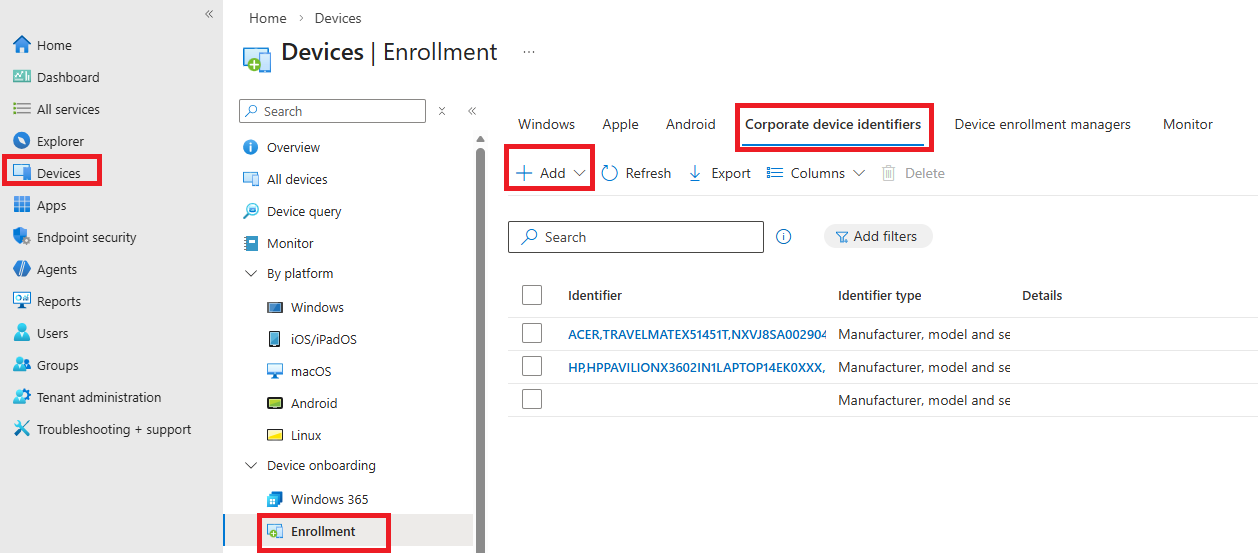
Corporate Device Identifiers (CDI)
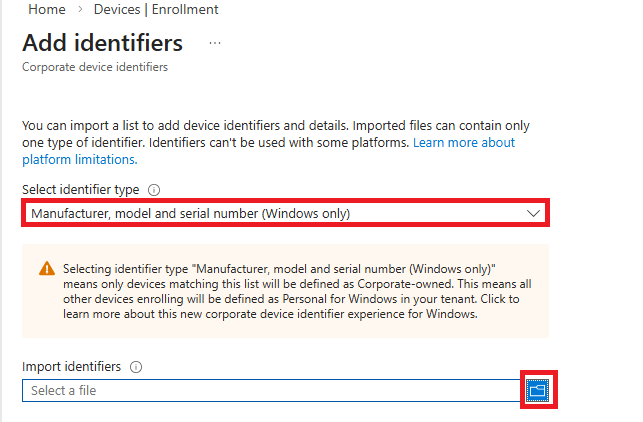
Define which devices are corporate-owned by importing manufacturer, model, and serial numbers. This ensures they're marked as corporate in your tenant.
Note: Only Windows devices with matching identifiers will be marked as corporate. All others will be personal by default.
2
Device security group – owner: Intune provisioning-client
Create a security group that contains the devices you want to prepare. Then modify the group's owner to the service principal Intune provisioning-client. This allows Intune to identify them for Device Preparation.
static/intunepart1/devicebuildgroupprovisioningclient.png - Group owners showing Intune Provisioning Client
Azure AD → Groups → your device group → Owners → Add "Intune provisioning-client" (type the name exactly)
Critical: Without this owner, the profile won't be delivered.
3
User group – allowed to enroll
Only users in this group will be able to log in during the first boot and complete MDM enrollment. This is typically an "allowed users" group.
Tip: Use a dynamic group based on department, or just an assigned group with pilot users.
4
Create Device Preparation profile
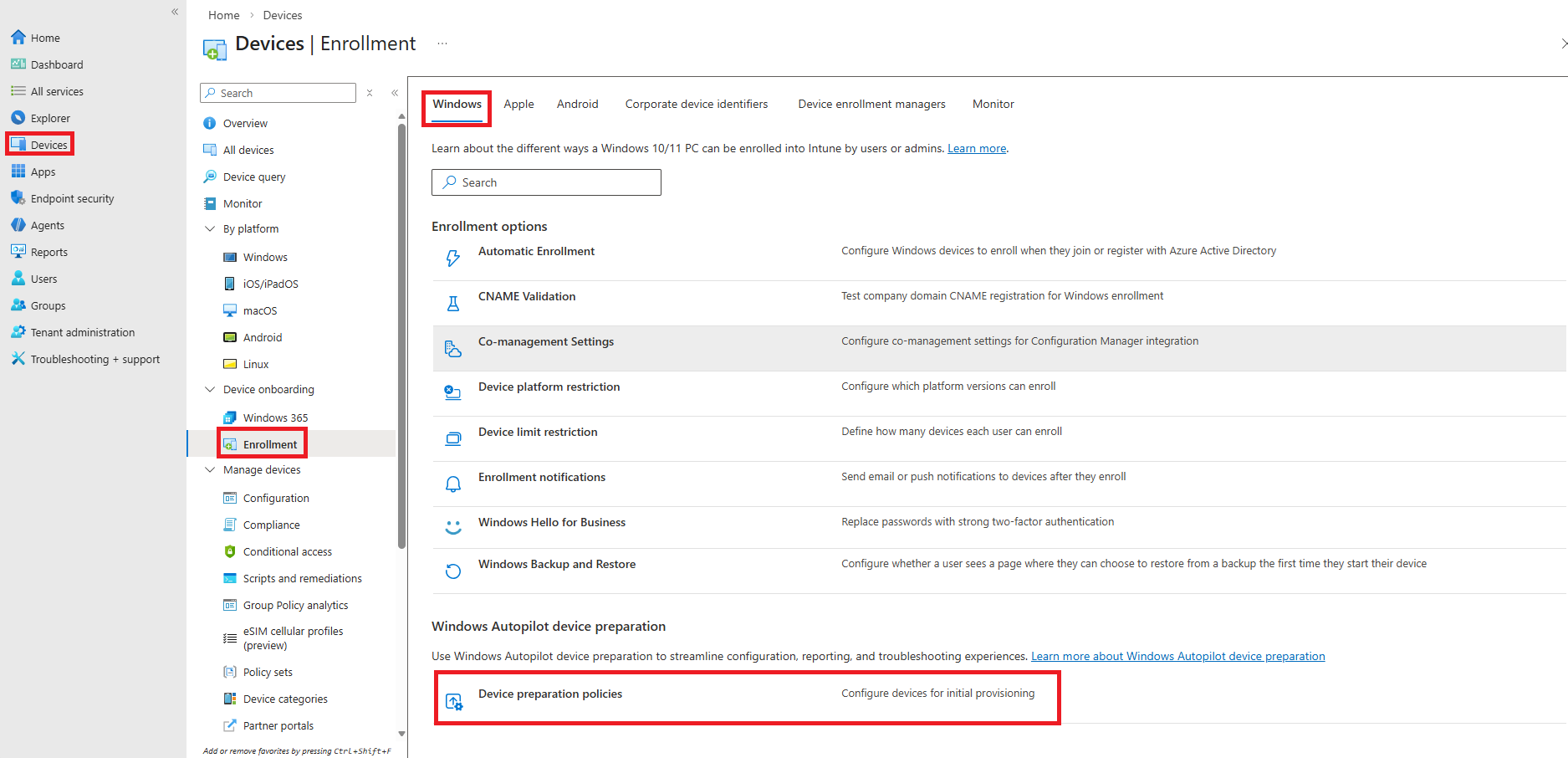
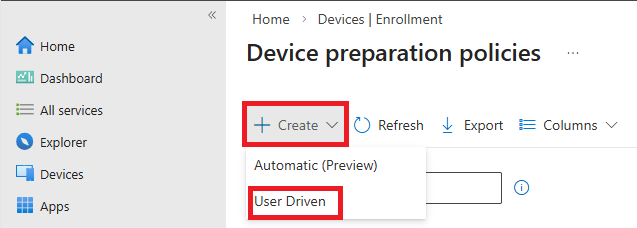
In Intune: Devices → Windows enrollment → Device Preparation. Click "Create profile".
static/intunepart1/enrollment-01.png - Navigate to Windows enrollment
static/intunepart1/enrollment-02.png - Device preparation policies list
static/intunepart1/enrollment-03.png - Policy basics and device group assignment
Key settings:
Assign to the device group you created (step 2).
Select the user group that is allowed to enroll.
Choose your OOBE branding (optional).
This is where you link the two groups. Double‑check that you've selected the right ones.
5
Select apps to install during build
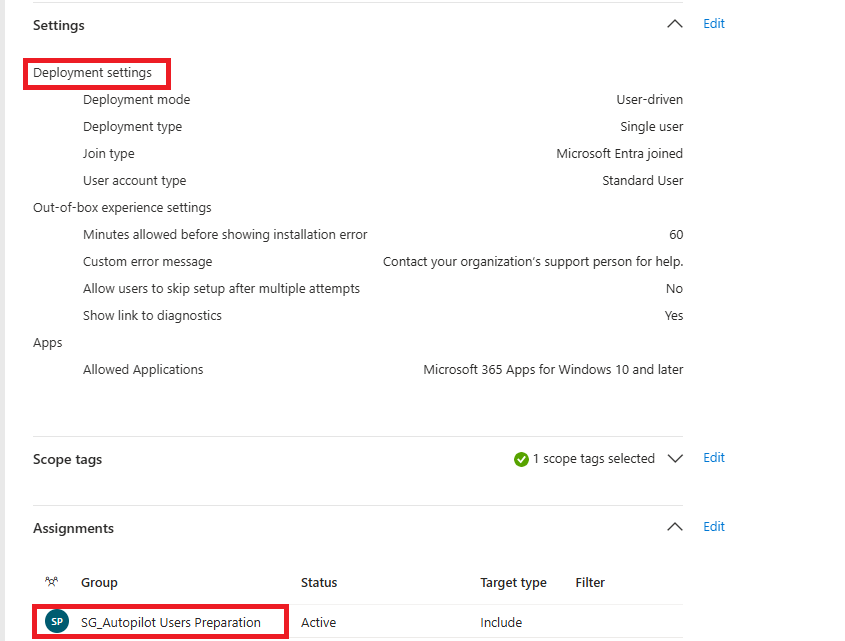
Inside the profile you can choose required applications – they will be installed before the user sees the desktop. Great for Company Portal, Microsoft 365 Apps, and line‑of‑business apps.
static/intunepart1/enrollment-04.png - Deployment settings and allowed applications
Only device context apps (install for system) work seamlessly during this phase.
6
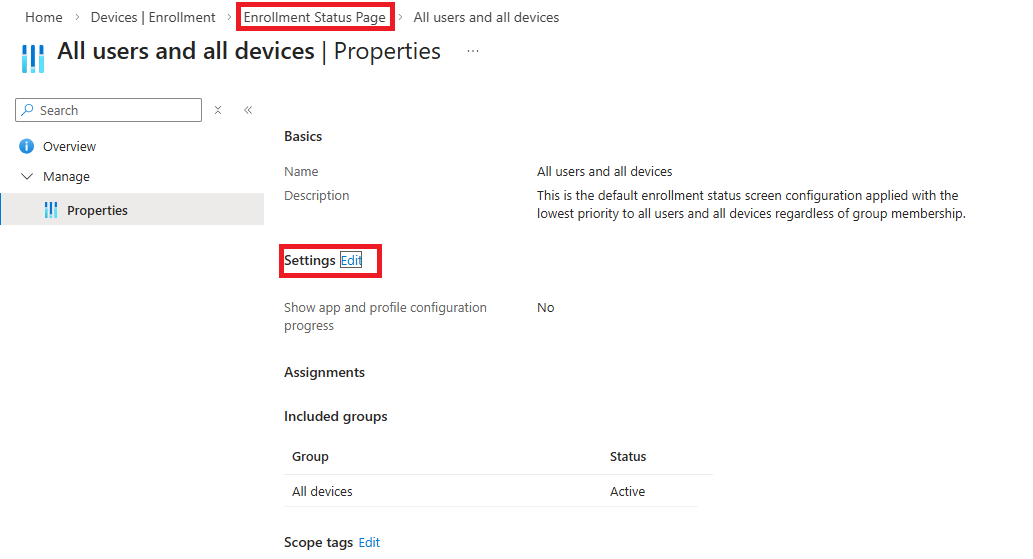
Configure Enrollment Status Page (ESP)
Control what the user sees during device preparation and whether they can skip app installation.
static/intunepart1/enrollmentstatuspage.png - ESP properties and settings
Recommended: block device use until all required apps are installed.
7
Monitor device builds
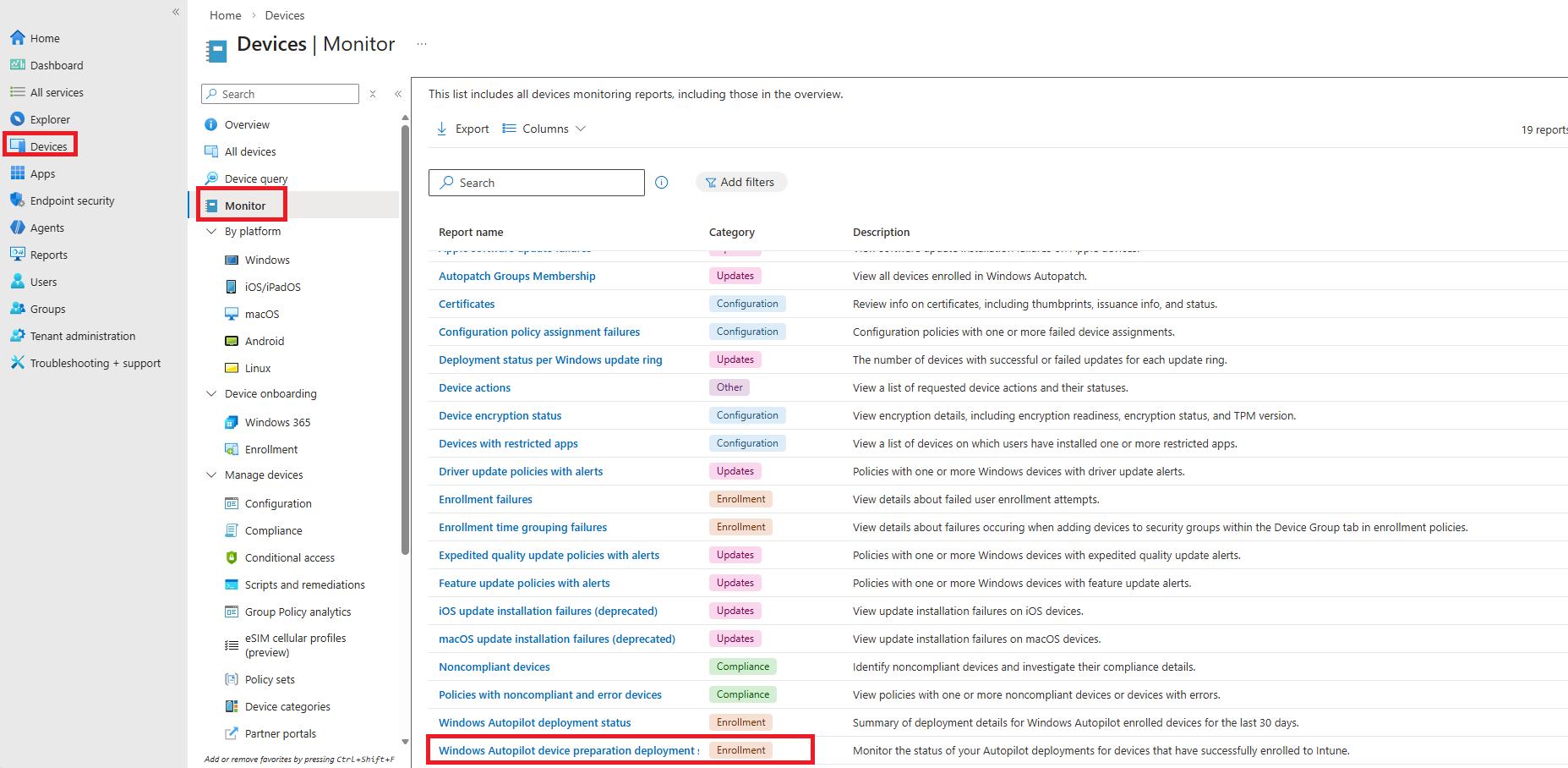
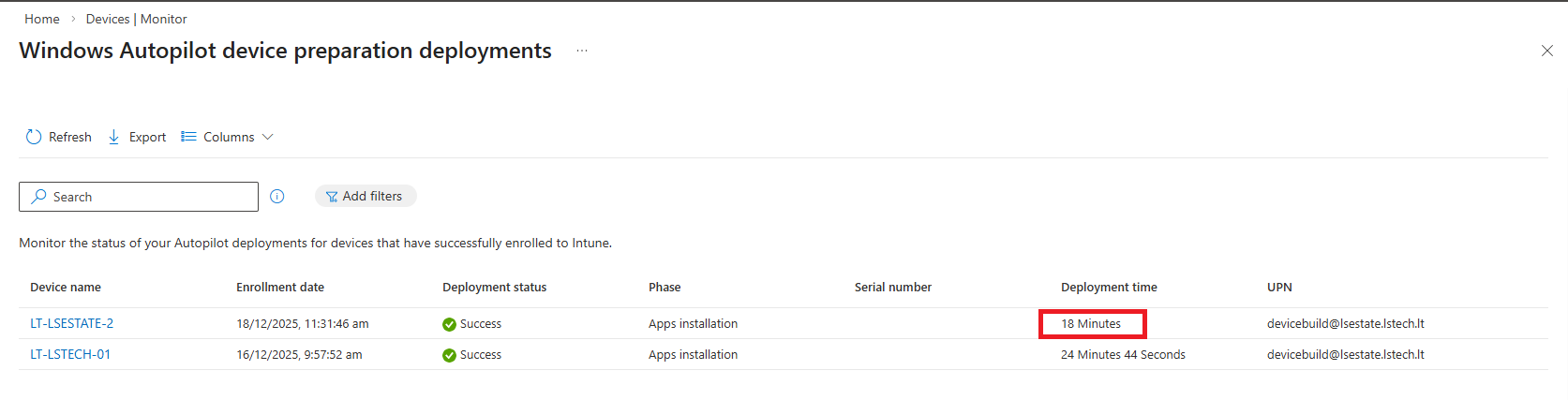
Go to Devices → Monitor → Windows Autopilot device preparation deployments. You can see each device's status, time taken, and errors.
static/intunepart1/monitor.png - Full monitoring reports list
static/intunepart1/monitor-example.png - Real device preparation deployments with status and timing
Tip: Use the monitoring view to track how long the build takes and which apps might be stuck.
8
Real‑time build visibility
During OOBE, the user sees the progress. You can also remotely monitor in Intune under the device's overview. The deployment time column shows exactly how long each phase took.
If a device gets stuck, you can restart the preparation from the portal.
Part 2: Device Compliance & Security Hardening
Now that your devices are enrolled with Autopilot v2, the next step is to secure them with compliance policies and hardening configurations.
It's a built‑in service principal that enables the Autopilot v2 service to enroll devices. You must add it as an owner of the device group – otherwise the profile won't apply.
Can I mix device and user groups?
Yes. The profile is assigned to a device group, but you also select a user group that is allowed to sign in during OOBE. They are separate.
Which apps can I install during device preparation?
Any Windows app that supports device context (system) installation. MSI, Win32 apps with system context, Microsoft 365 Apps (using Office Deployment Tool), and store apps that are offline licensed.
Do I need hybrid join or Azure AD only?
Both work, but Device Preparation works best with Azure AD join. For hybrid, additional configuration (connector) is required.
Get notified when Part 2 is released
Be the first to know when Device Compliance & Hardening guide drops.
About the Author
Liladhar Sapkota is an IT professional with expertise in Microsoft 365, Intune, and automation. Writing documentation based on real production experience.