Intune Autopilot v2 – Part 2: Complete Device Hardening with Compliance & Security Policies

Complete Hardening Guide: One Place, All Policies
After devices are enrolled with Autopilot v2, this is your single source of truth for hardening them. I've built and tested these policies across multiple organisations – they work, they're validated, and you can deploy them with confidence. No more piecing together information from different Microsoft articles. Here's everything in one place.
Compliance Policies
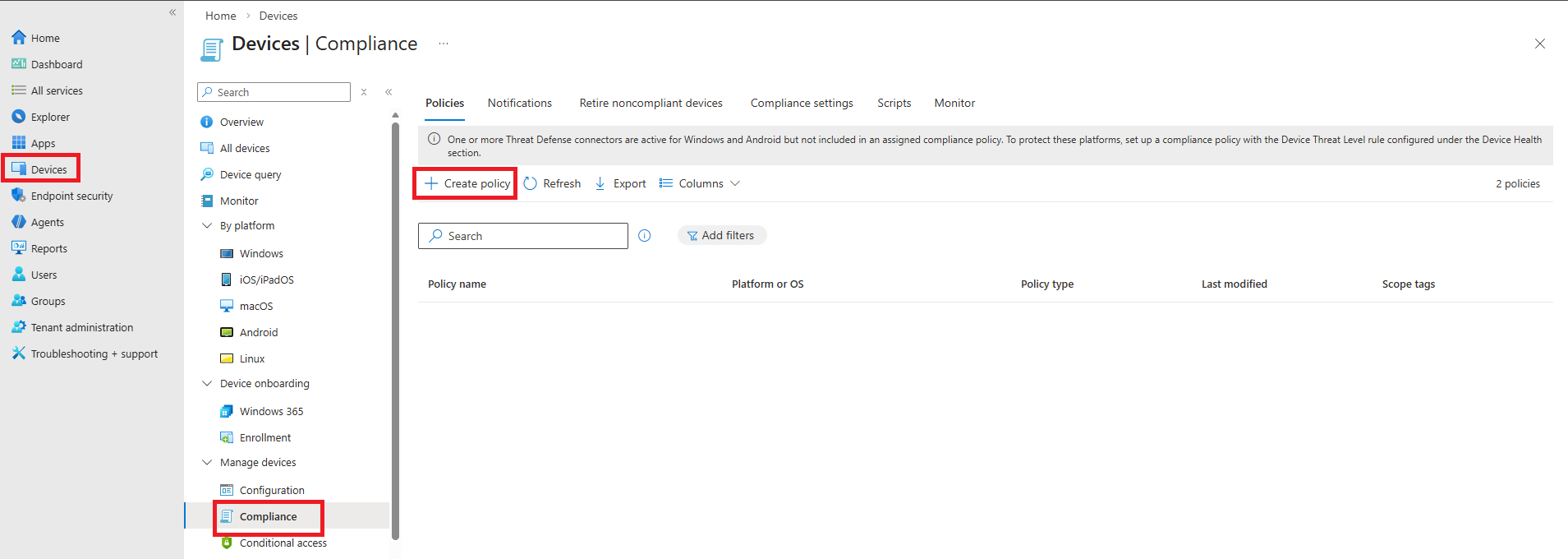
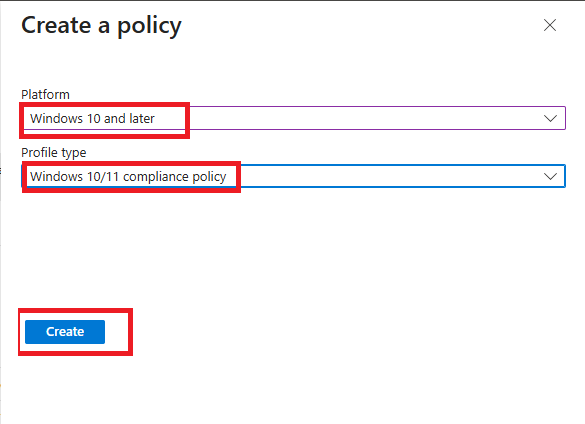
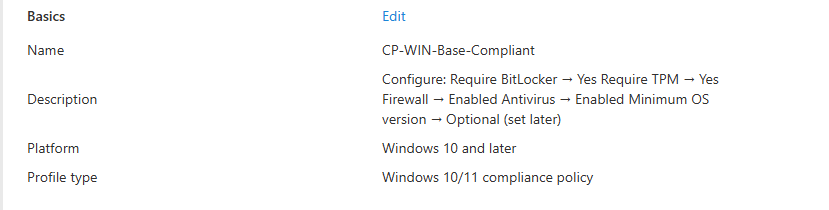
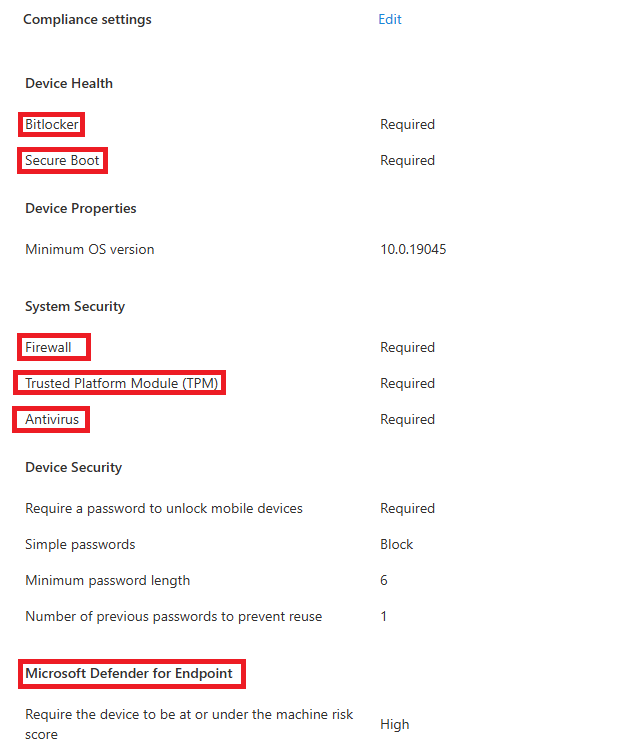
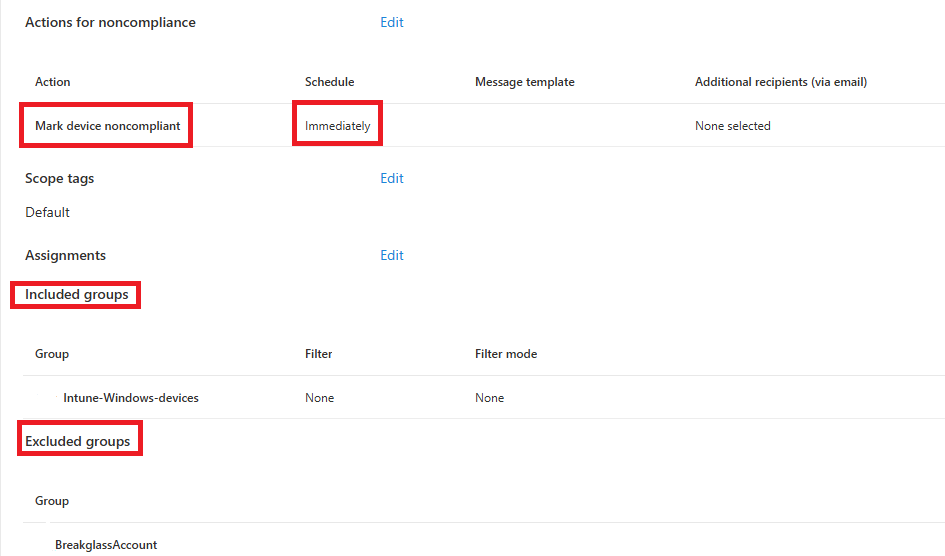
Compliance policies are the gatekeepers that check if a device meets your security requirements like encryption, password strength, and antivirus health before it can access company resources.
How we set this up in production: We create a base compliance policy for all Windows devices requiring BitLocker, Defender health, and password length of at least 8 characters. Then we mark devices non-compliant after 7 days and send notifications to users.
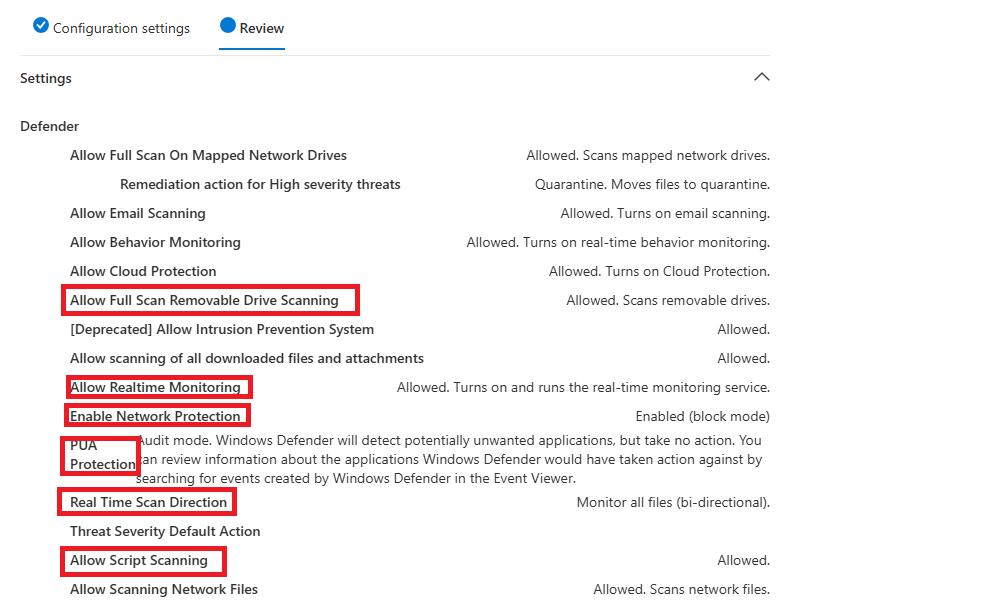
Microsoft Defender Antivirus
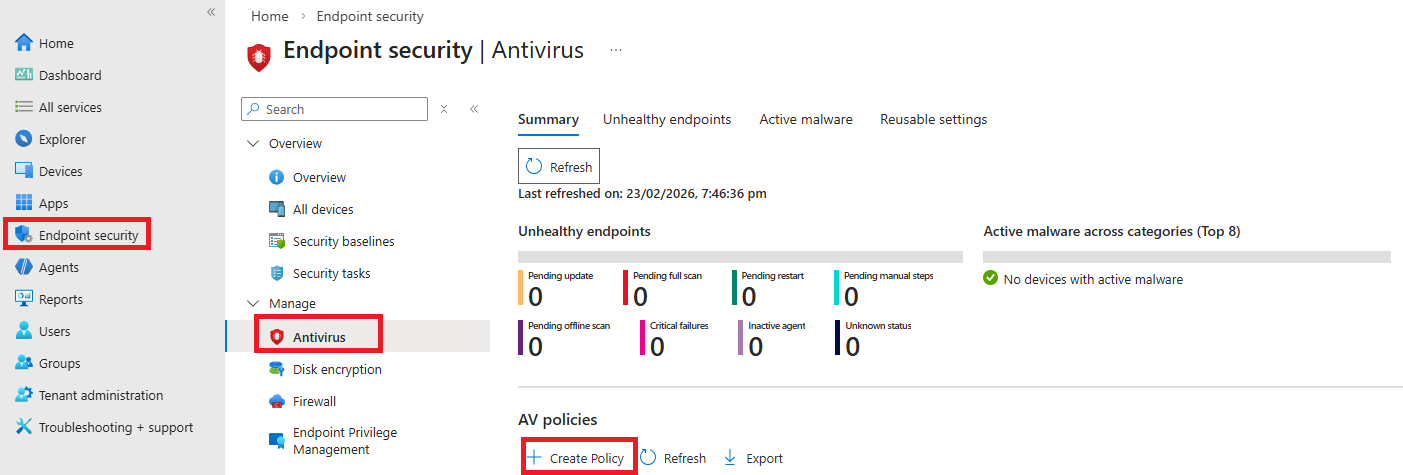
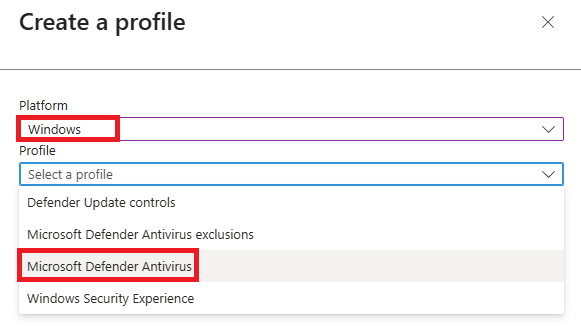
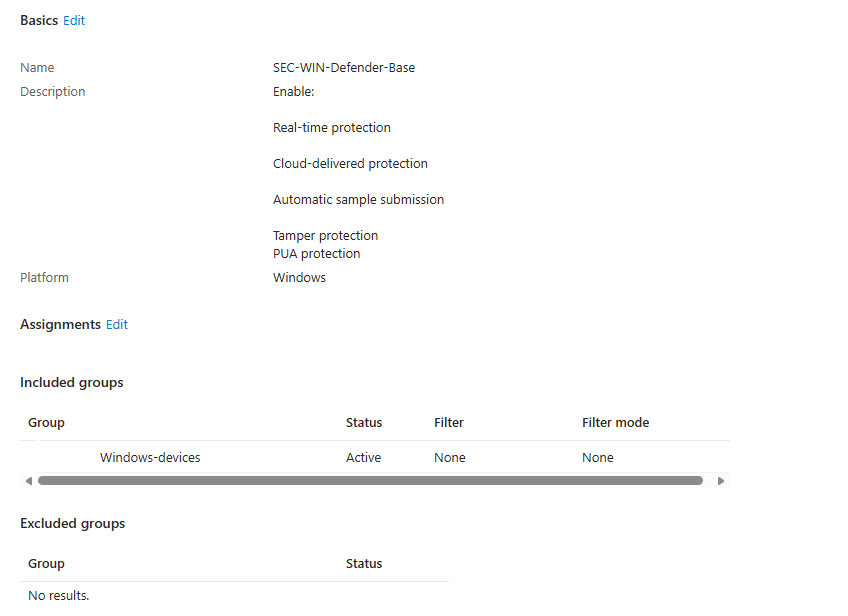
Defender Antivirus is your built-in malware protection that runs in real-time, scanning files and processes as they're accessed.
How we set this up in production: We enable cloud-delivered protection with moderate blocking level, set real-time monitoring for all files, and schedule a quick scan daily plus a full scan weekly.
BitLocker Disk Encryption
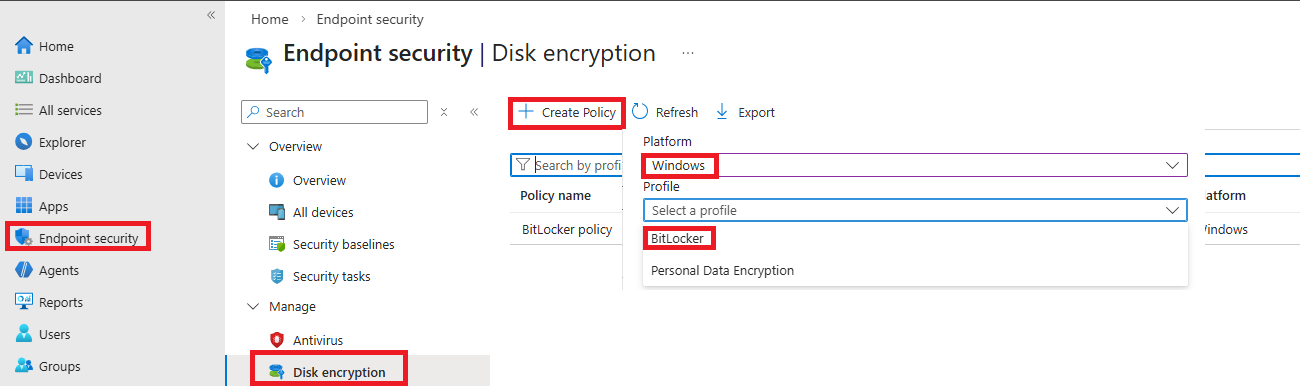
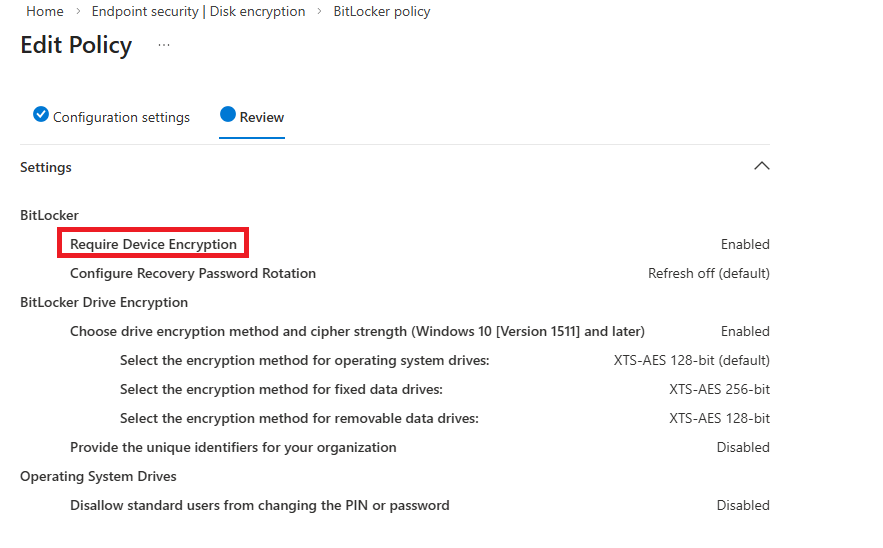
BitLocker encrypts the entire Windows drive so if a device is lost or stolen, the data is unreadable without the recovery key.
How we set this up in production: We enable silent encryption so users never see prompts – it just happens in the background. Recovery keys are automatically escrowed to Azure AD so helpdesk can retrieve them when needed.
Windows Firewall Configuration
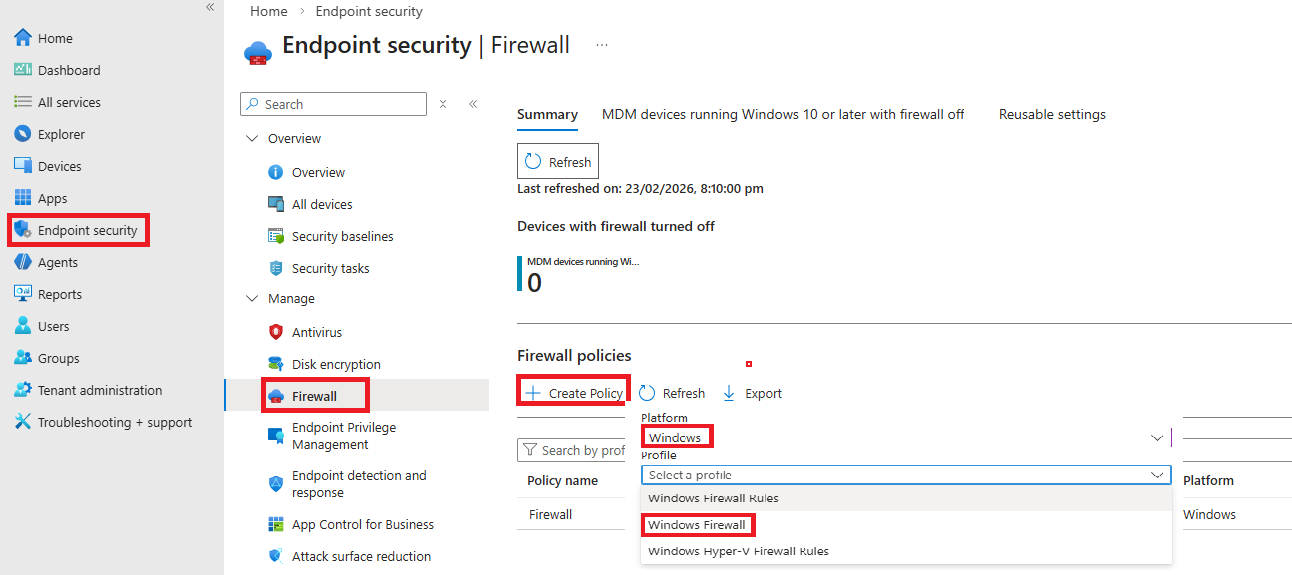
Windows Firewall controls inbound and outbound network traffic, blocking unauthorised access while allowing legitimate communication.
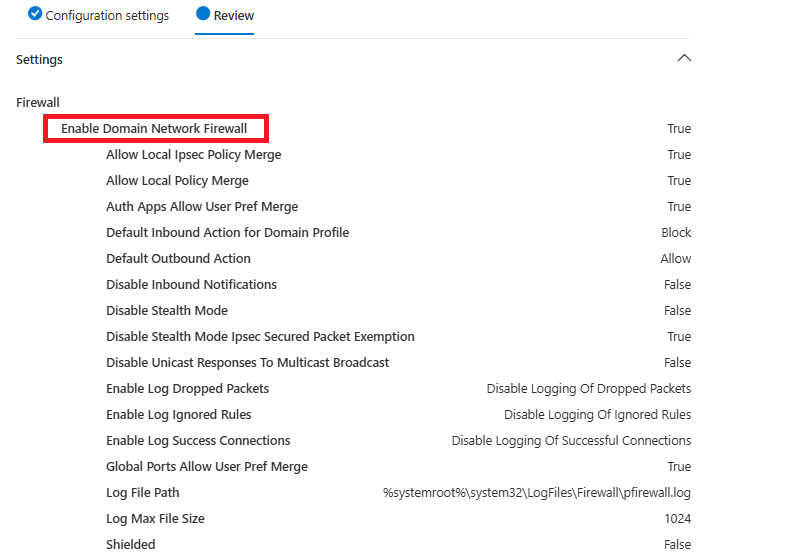
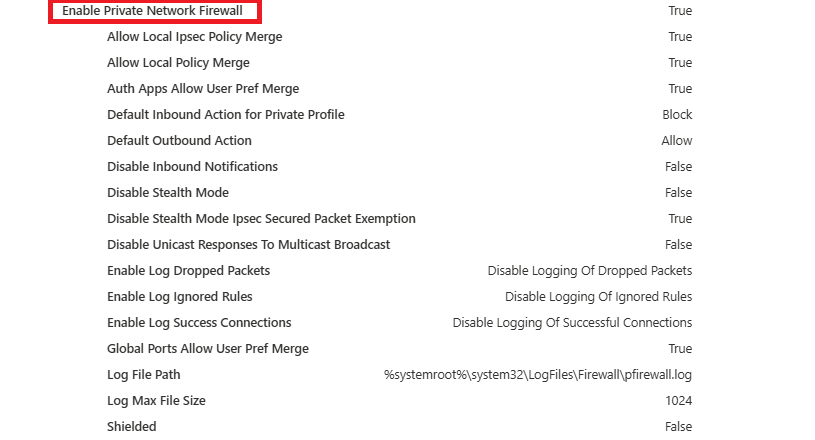
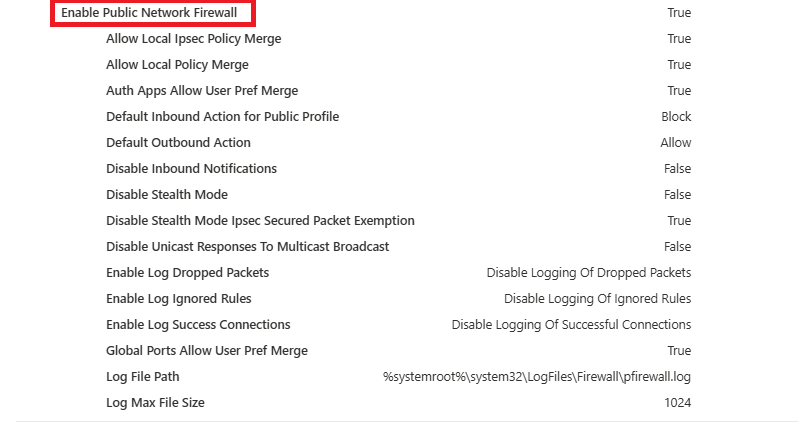
How we set this up in production: We enable the firewall for all three profiles (Domain, Private, Public) with default inbound block and outbound allow.
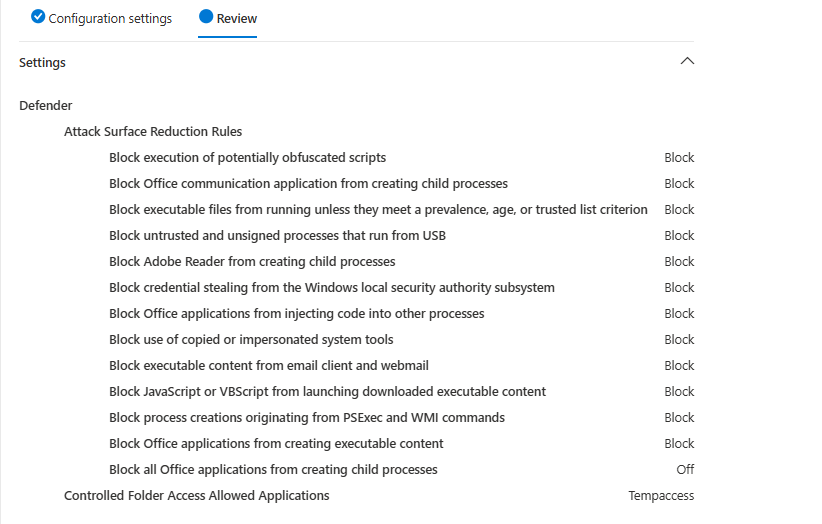
Attack Surface Reduction Rules
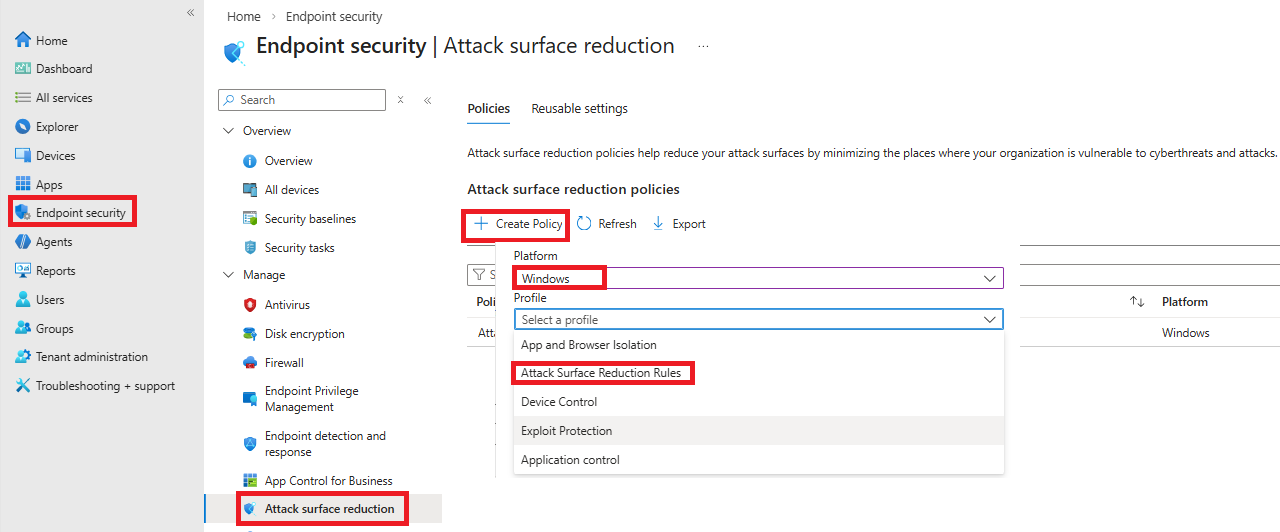
ASR rules block specific behaviours that malware commonly uses – things like Office apps launching child processes, scripts running from USB drives, or ransomware attempting to encrypt files.
How we set this up in production: We enable all ASR rules in audit mode first for two weeks to see what would be blocked. Then we gradually switch them to block mode, starting with the safest rules.
Exploit Protection
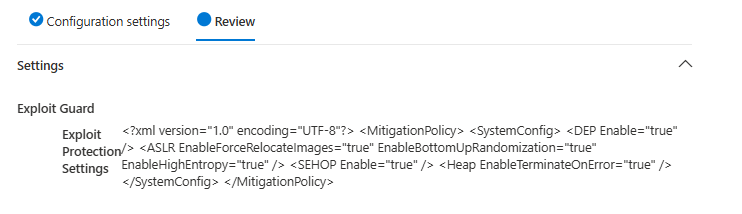
Exploit protection applies mitigations like DEP, ASLR, and CFG to both system-wide and specific applications, making it harder for attackers to exploit memory vulnerabilities.
Windows LAPS (Local Admin Password Solution)
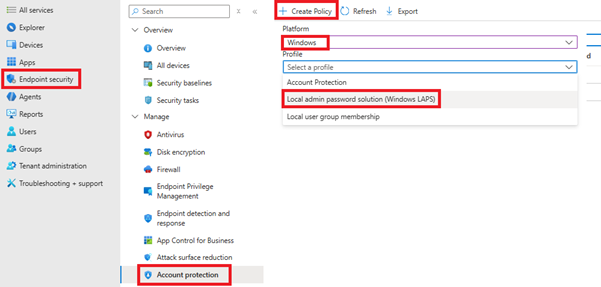
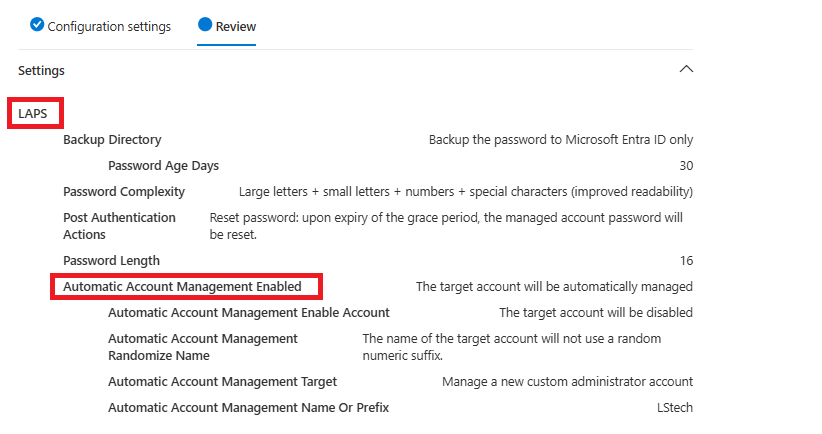
LAPS manages the local administrator password on every device, rotating it regularly and storing it securely in Azure AD.
How we set this up in production: We enable LAPS with password rotation every 30 days, using 20-character complex passwords. Passwords are backed up to Azure AD, and we grant helpdesk access to retrieve them when needed.
Local Administrator Group Control
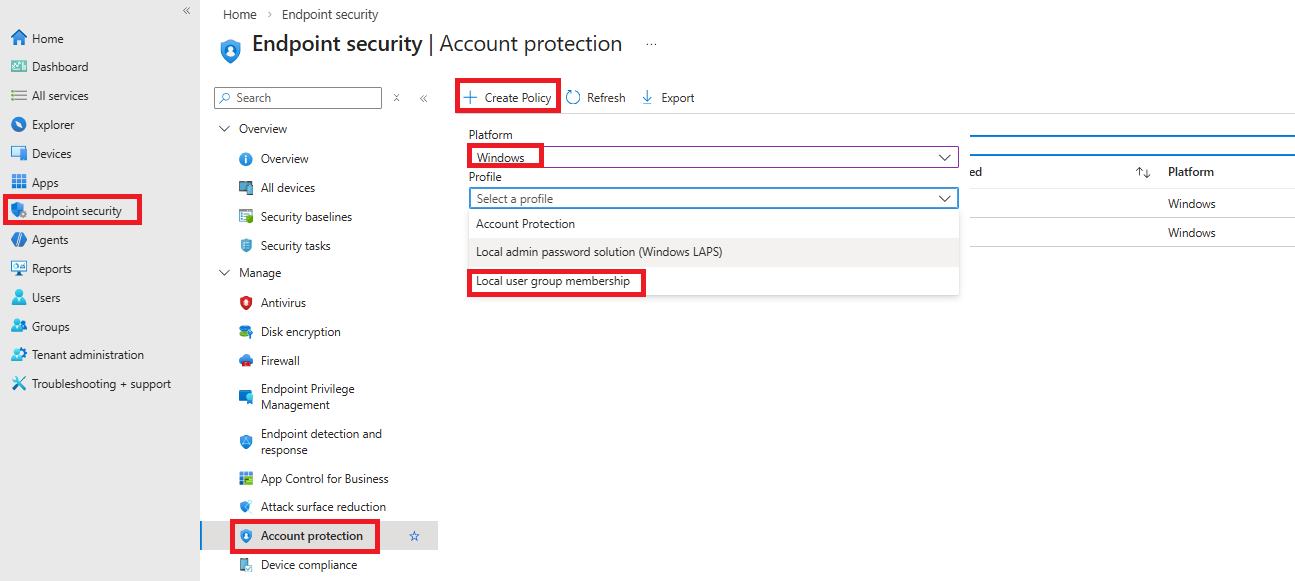
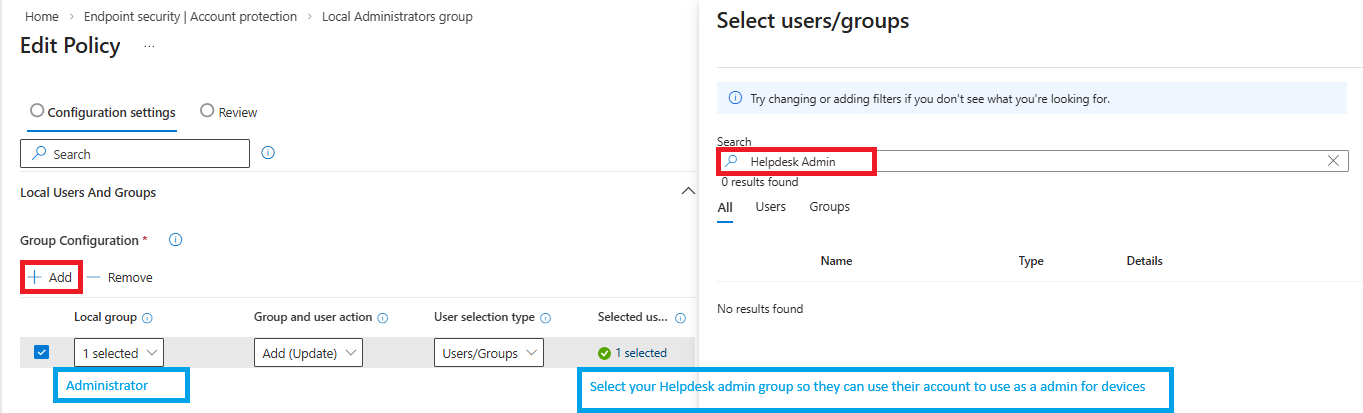
This policy controls exactly which users can perform admin tasks on a device without creating local accounts.
How we set this up in production: We add a security group containing our helpdesk team to the local administrators group on every device. We never add individual users – always groups.
Conditional Access Policies
Conditional Access is the policy engine that decides who can access what, from where, and under what conditions – like requiring compliant devices for access to company email.
How we set this up in production: We create a policy that requires devices to be marked as compliant before accessing Exchange Online and SharePoint. We also add MFA for all external access.
