Outlook Slow or Freezing? 15+ Real-World Fixes That Actually Work

Why Outlook Gets Slow (From Someone Who Fixes This Daily)
Here's something no one will tell you, but trust me – you'll end up here eventually.
The situation: Someone comes to you at the last minute, panicking. "My Outlook is freezing and I really need to send an important email!" What do you do?
When Outlook freezes, it doesn't work easily. You usually have to go through multiple troubleshooting steps. But here's a hack you can use in ANY situation:
🚨 Emergency Hack: Try Outlook Web First
This tells you whether Outlook itself is having an issue, or if it's your email account.
Go to outlook.com → Sign in → Send that urgent email → Then start troubleshooting
Another option could be using the new version of Outlook, but it also has some bugs that I'll cover later in this guide.
In my experience, 90% of Outlook performance problems come from a few repeat offenders:
- Add-ins - third-party integrations gone bad
- Large PST files - over 10GB causes slowdowns
- Corrupt PST/OST - data file needs repair
- Profile corruption - Outlook profile is broken
- Search index - Windows Search is corrupt
- Antivirus - scanning every email in real-time
Symptoms Checklist - What You're Probably Seeing
- Outlook shows "Not Responding" when clicking folders
- Stuck at "Loading Profile" for minutes
- High CPU usage by OUTLOOK.EXE (check Task Manager)
- Search freezes or returns no results
- Delays opening shared mailboxes or calendars
- Very slow startup after Windows reboot
- Outlook crashes when sending emails
- Mouse spins constantly (the never-ending circle of doom)
5 Quick Fixes to Try First
- Restart Outlook + PC - Close Outlook from Task Manager, reboot once. You'd be surprised how often this fixes temporary glitches.
- Update Office - File → Office Account → Update Options → Update Now. Microsoft fixes bugs constantly.
- Close memory-heavy apps - Chrome with 20 tabs + Teams + Zoom can starve Outlook of resources.
- Disable antivirus email scanning - Temporarily disable to test. If Outlook speeds up, add exclusions.
- Run Windows Update - Security updates and .NET fixes can resolve Outlook crashes.
1. Disable Problematic Add-ins (The #1 Culprit)
Add-ins are almost always the problem. Here's how to check:
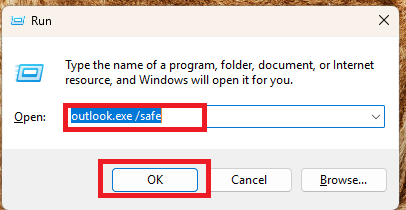
Figure: Starting Outlook in Safe Mode
Quick test: Hold Ctrl key while clicking Outlook icon, or run: outlook.exe /safe
If Outlook runs fast in Safe Mode, add-ins are definitely the cause.
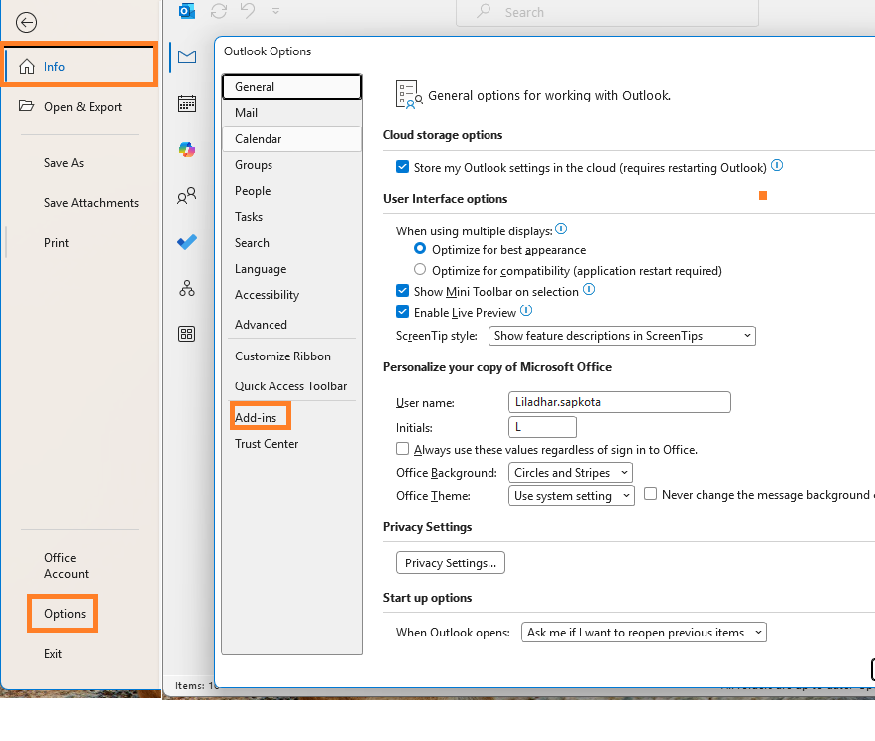
Figure: Navigate to File → Options → Add-ins
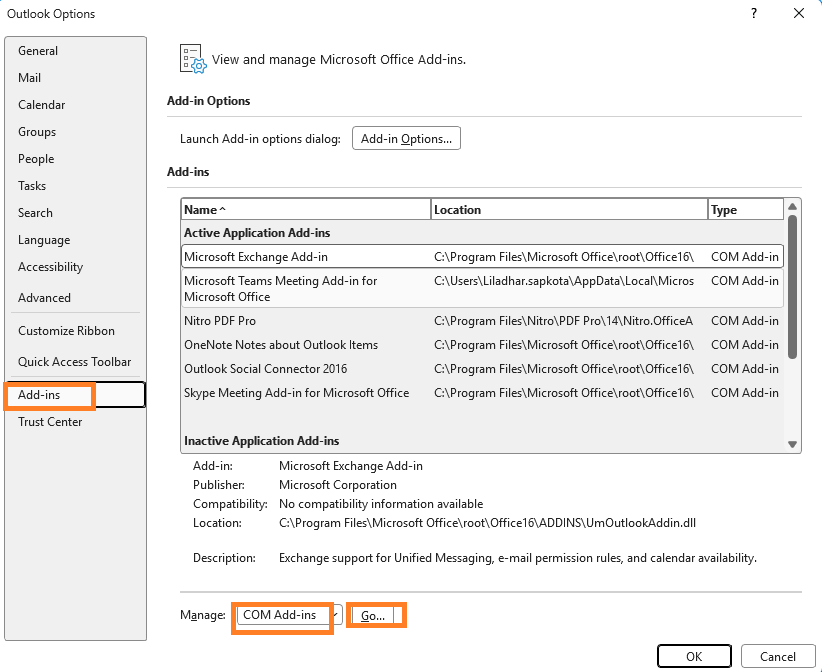
Figure: Click "Go" next to COM Add-ins
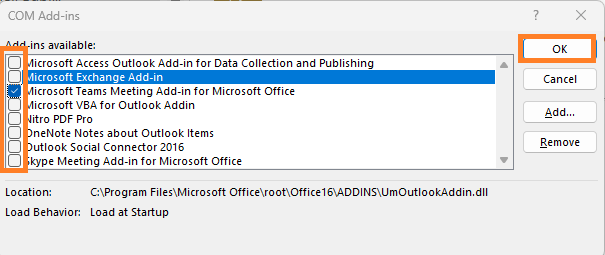
Figure: Uncheck everything that's not Microsoft
Common offenders: Adobe Acrobat, Zoom add-in, CRM plugins, antivirus integrations.
2. Create a New Outlook Profile (Fixes 80% of Issues)
Creating a new Outlook profile solves most issues like disappearing shared mailboxes, blinking shared folders, and slow performance. Here's how I prefer to do it:
Go to Control Panel. By default, view is set to Category. Change to Small icons and look for:
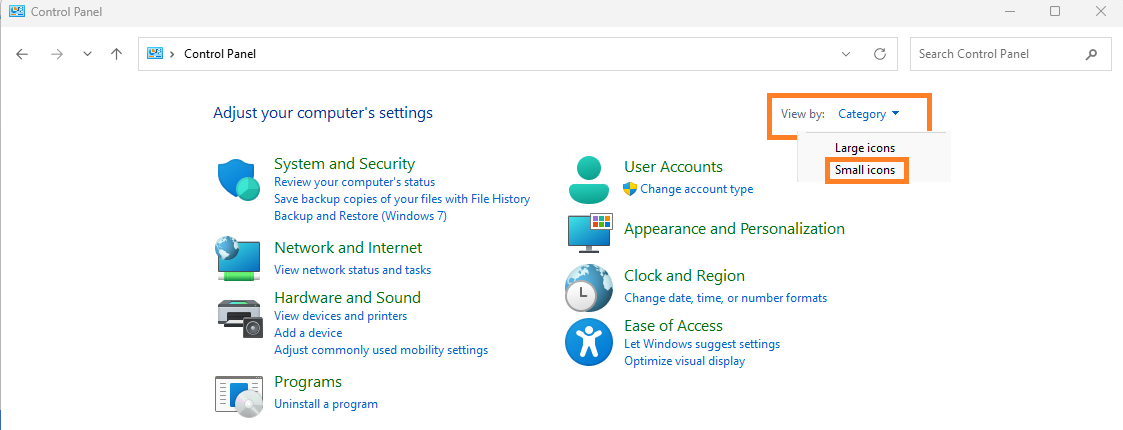
Figure: Control Panel default view - change to small icons
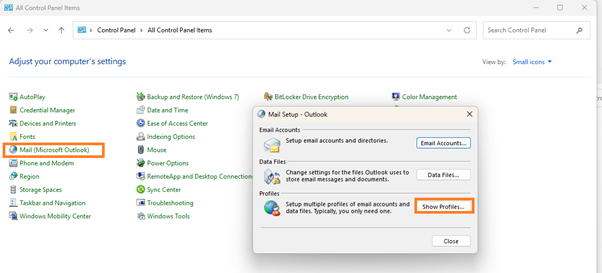
Figure: Find and click "Mail"
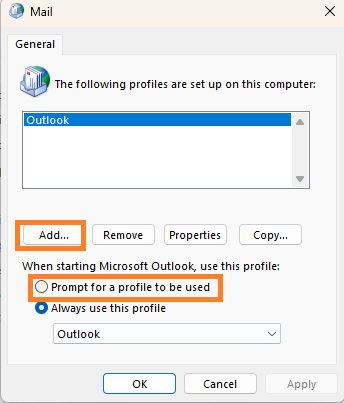
Figure: Click "Show Profiles"
Remove the existing profile and click OK. Then go back to Outlook classic app and start it – it will prompt you to create a new profile.
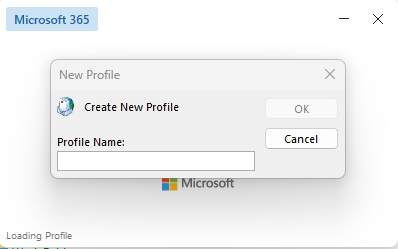
Figure: Name it "Profile1" – it will auto-detect your account
Give it any name (like "Profile1") – it will automatically detect your account. Click Next and wait until it downloads all folders and emails.
3. Reduce OST File Size (Download Less, Run Faster)
Instead of keeping years of emails offline, reduce download to 3 months and compact the data file.
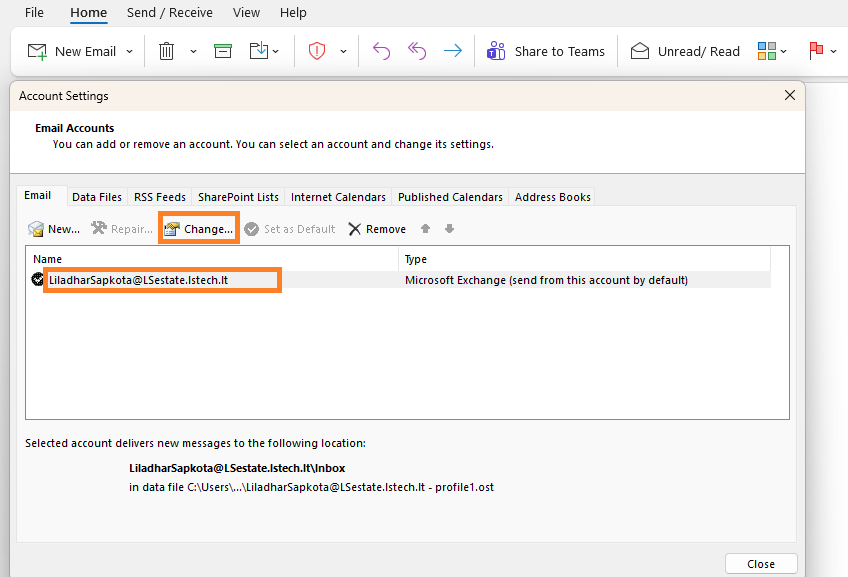
Figure: File → Account Settings → Select account → Change
Click on File → Account Settings → Account Settings. Select your account and click Change.
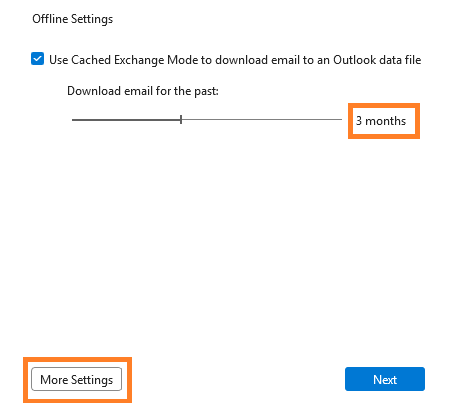
Figure: Change "Download email for the past" to 3 months
Change "Download email for the past" to 3 months. Then click "More Settings".
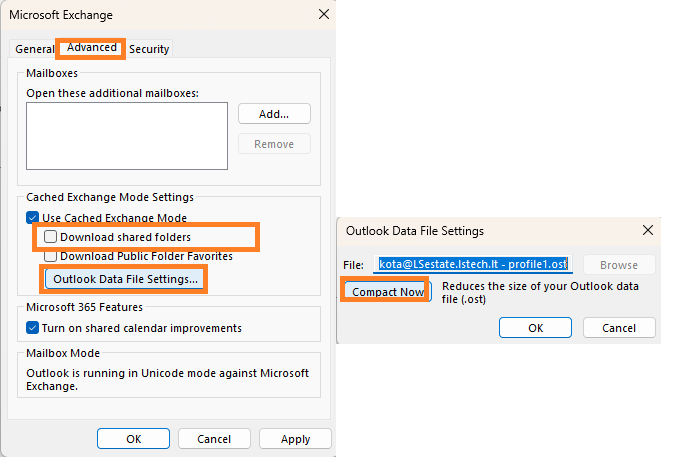
Figure: Go to Advanced, uncheck shared folders, and click Compact Now
Go to Advanced tab:
- ✅ Uncheck "Download shared folders" (this speeds up shared mailbox access)
- Click Outlook Data File Settings → Compact Now
It will compact the file and Outlook will start running faster. Apply and restart Outlook.
4. Clean Outlook RoamCache
RoamCache stores UI data. When it corrupts, Outlook can freeze or crash randomly.
%localappdata%\Microsoft\Outlook\RoamCache
- Close Outlook completely
- Press Win + R and paste the path above
- Delete everything inside the folder
- Restart Outlook
5. Repair Microsoft Office
If Office files are corrupted, a repair can fix Outlook without reinstalling.
Control Panel → Programs → Programs and Features
Find Microsoft 365/Office → right-click → Change
Choose "Quick Repair" first
If that fails, try "Online Repair"
6. Rebuild OST File (For Exchange/M365 Users)
For Exchange Online or Microsoft 365 mailboxes, Outlook uses an OST cache file. If it corrupts, delete and let it rebuild.
1. Close Outlook
2. Control Panel → Mail → Data Files
3. Note the .ost file location → Open File Location
4. Rename the .ost file to .ost.old
5. Open Outlook (it will rebuild automatically)
7. Fix Shared Mailbox/Calendar Slowness
Shared mailboxes and calendars can make Outlook crawl. Here's the fix:
- Disable "Download Shared Folders" - File → Account Settings → double-click your account → More Settings → Advanced → Uncheck "Download shared folders"
- Reduce cached range - File → Account Settings → Change → set "Mail to keep offline" to 3-6 months (we already did this in Step 3)
8. Disable RSS Feeds (Yes, People Still Use Them)
RSS feeds in Outlook can cause background sync loops that slow everything down. Unless you actually use RSS in Outlook, turn it off.
Outlook → File → Options → Advanced
Under "RSS Feeds", uncheck "Synchronize RSS Feeds to the Common Feed List"
OK → Restart Outlook
Last Resort Options
Uninstall and Reinstall Office
Sometimes a clean install is the only answer. Uninstall Office completely, restart, and reinstall from portal.office.com.
Update Office and Windows
Microsoft releases performance fixes regularly. Keep everything updated:
- Office: File → Office Account → Update Options → Update Now
- Windows: Settings → Windows Update → Check for updates
Reset All Views
outlook.exe /cleanviews
This resets custom folder views if they're corrupted.
Check Disk Health
If your hard drive is at 100% usage, Outlook will be slow. Open Task Manager and check.
Check "Work Offline" Mode
In the Send/Receive tab, make sure "Work Offline" is NOT enabled (it shouldn't be highlighted).