PSAppDeployToolkit with Intune Part 1: Install and Uninstall Bluebeam Revu

What this Part 1 guide covers
This is a real beginner-friendly example of packaging Bluebeam Revu 21 with PSAppDeployToolkit (PSADT) and deploying it as a Microsoft Intune Win32 app. I used a working Beam/Bluebeam MSI package, tested the PSADT install flow on a Windows device, generated the .intunewin package, and uploaded it to Intune.
This page is only Part 1: install and uninstall. I am intentionally not covering app updates, supersedence, or version replacement here. That will be Part 2, because updating Win32 apps needs its own careful workflow.
Invoke-AppDeployToolkit.ps1 and Invoke-AppDeployToolkit.exe. Older PSADT v3 guides usually talk about Deploy-Application.ps1, which can confuse beginners.
Understand PSADT in simple terms
PSADT is a PowerShell toolkit that wraps normal installers inside a repeatable deployment script. Instead of giving Intune a raw MSI command and hoping it works, PSADT gives you a clean structure for app metadata, install logic, uninstall logic, user prompts, and logs.
- Install: run the MSI with consistent logging and optional user prompts.
- Uninstall: call the matching removal command from the same package.
- User experience: show a proper install/defer window instead of a silent mystery install.
- Logs: make troubleshooting easier when Intune says an app failed.
For this example, I packaged Bluebeam Revu 21 as a Win32 app because this is exactly the type of installer many IT teams need to manage through Intune.
Prepare the PSADT source folder
I created a clean source folder at C:\IntuneApps\Bluebeam. This is the folder that later gets wrapped into a Win32 .intunewin package.
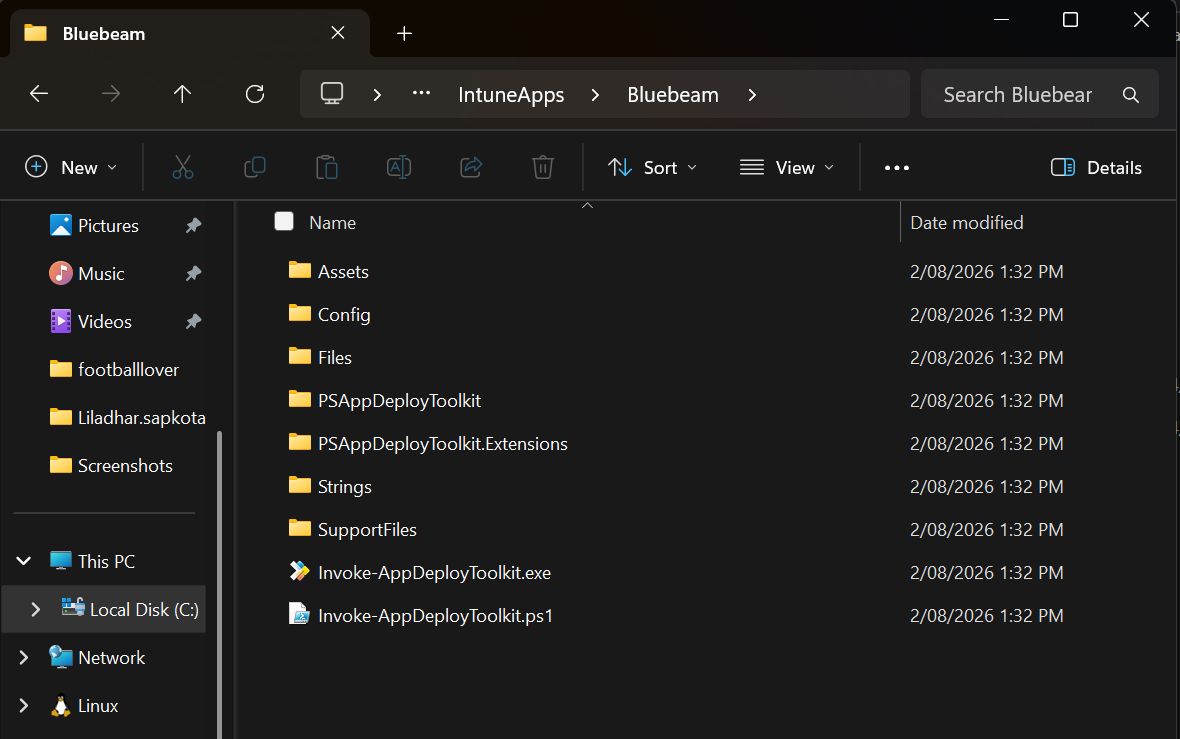
C:\IntuneApps\Bluebeam
├── Files
│   └── Bluebeam Revu x64 21.msi
├── Config
├── PSAppDeployToolkit
├── PSAppDeployToolkit.Extensions
├── Strings
├── SupportFiles
├── Invoke-AppDeployToolkit.exe
└── Invoke-AppDeployToolkit.ps1- Files: where I placed the Bluebeam MSI.
- Invoke-AppDeployToolkit.ps1: where I changed the app name, version, install command, and uninstall command.
- Invoke-AppDeployToolkit.exe: the file Intune runs for install and uninstall.
- PSAppDeployToolkit folders: toolkit engine files. I do not recommend editing these as a beginner.
Edit the app metadata
Open Invoke-AppDeployToolkit.ps1 in Visual Studio Code. Locate the $adtSession hashtable and replace the template values with your real application details.
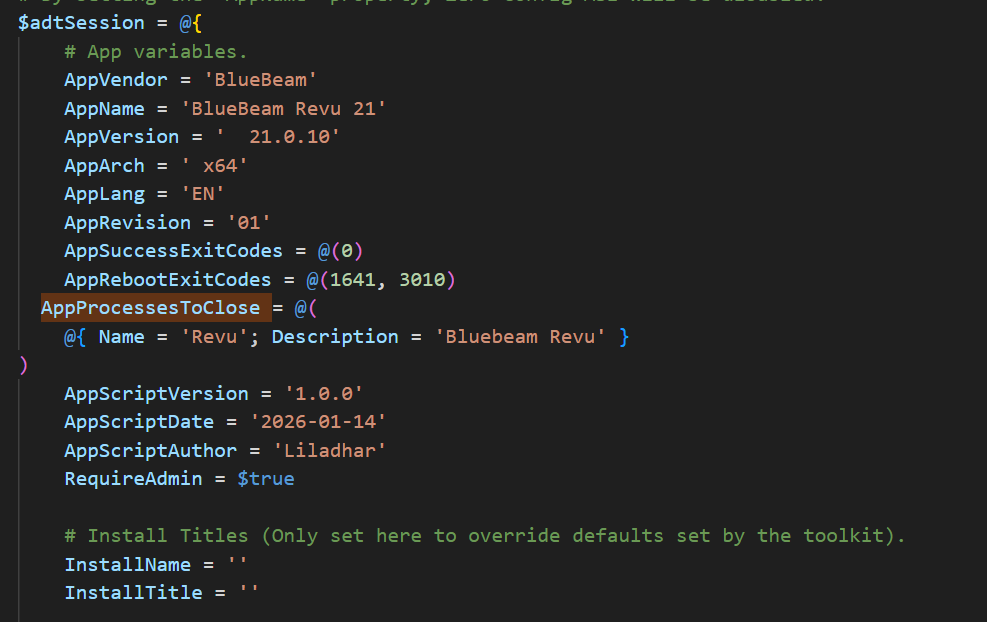
$adtSession = @{
    AppVendor = 'BlueBeam'
    AppName = 'BlueBeam Revu 21'
    AppVersion = '21.0.10'
    AppArch = 'x64'
    AppLang = 'EN'
    AppRevision = '01'
    AppSuccessExitCodes = @(0)
    AppRebootExitCodes = @(1641, 3010)
    AppProcessesToClose = @(
        @{
            Name = 'Revu'
            Description = 'Bluebeam Revu'
        }
    )
    AppScriptVersion = '1.0.0'
    AppScriptDate = '2026-01-14'
    AppScriptAuthor = 'Liladhar'
    RequireAdmin = $true
}
The important beginner detail here is AppProcessesToClose. Bluebeam Revu runs as Revu.exe, so I used Revu without the .exe extension. That lets PSADT warn the signed-in user before install or uninstall continues.
Add the Bluebeam install command
Find the Install-ADTDeployment function. In the install phase, I used Start-ADTMsiProcess to install the MSI that is stored inside the PSADT Files folder.
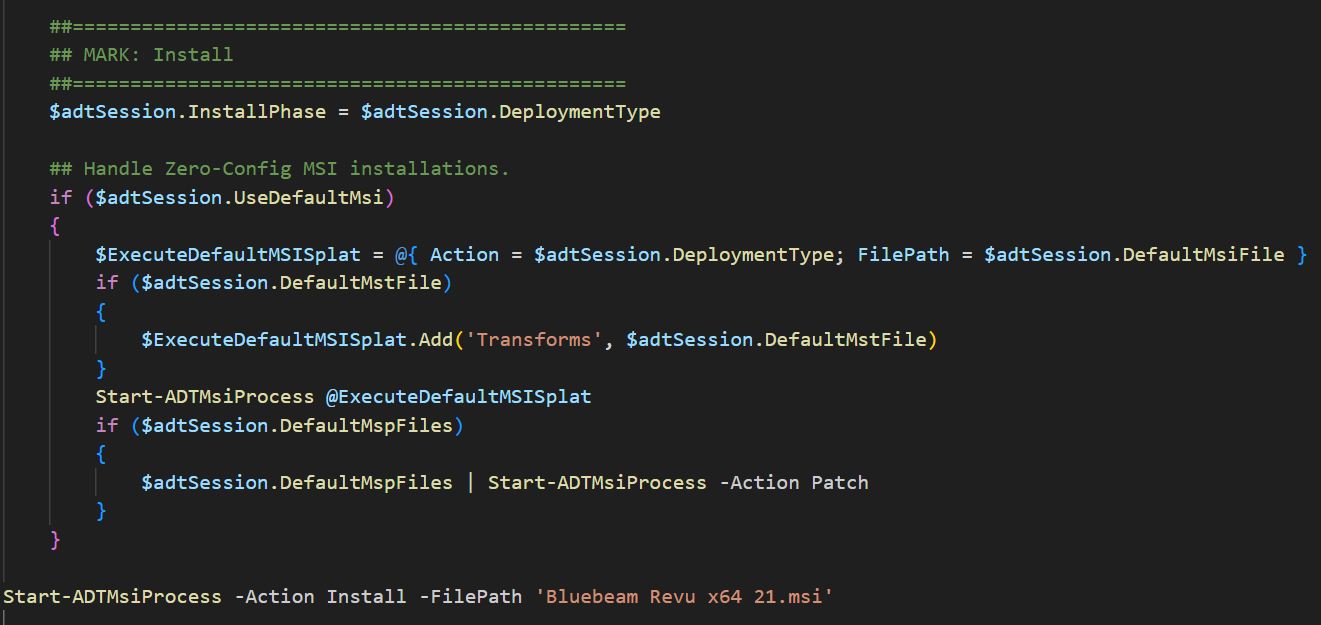
Invoke-AppDeployToolkit.ps1.Start-ADTMsiProcess -Action Install -FilePath 'Bluebeam Revu x64 21.msi'Files folder, I only need to reference the MSI filename. PSADT resolves it from the package content.
Add the Bluebeam uninstall command
In the same Invoke-AppDeployToolkit.ps1 file, find Uninstall-ADTDeployment. For this MSI example, I used Start-ADTMsiProcess again, but changed the action to Uninstall.

Start-ADTMsiProcess -Action Uninstall -FilePath 'Bluebeam Revu x64 21.msi'Test the PSADT install on a device
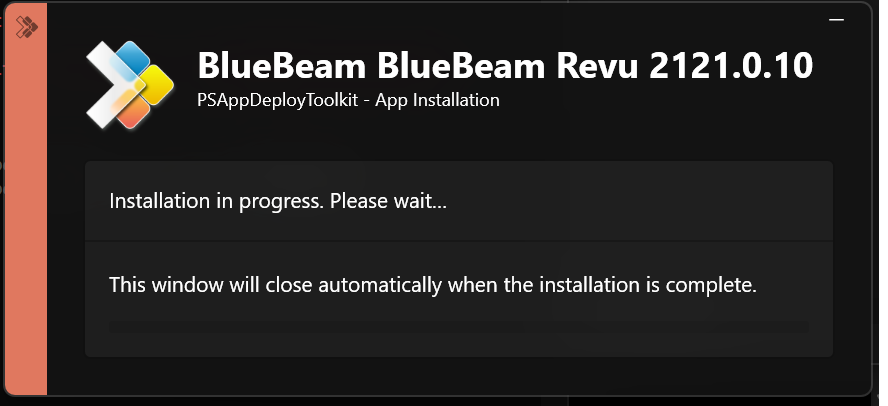
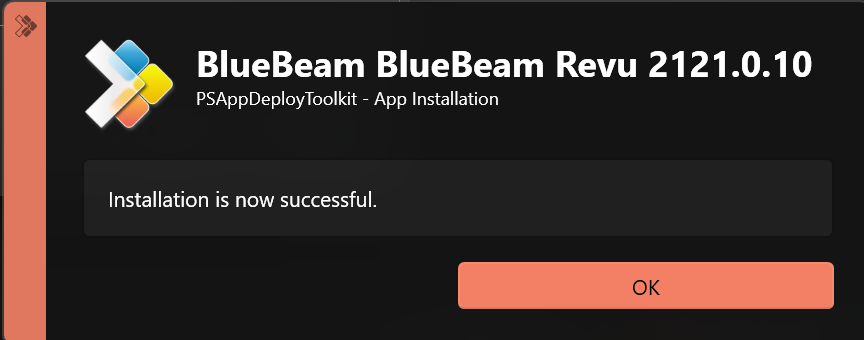
Before opening Intune, test the package locally. This is where I confirmed the Bluebeam install flow actually works on a Windows device.
# Interactive install test
.\Invoke-AppDeployToolkit.exe -DeploymentType Install -DeployMode Interactive

# Silent install test - closest basic test for Intune
.\Invoke-AppDeployToolkit.exe -DeploymentType Install -DeployMode Silent

# Silent uninstall test
.\Invoke-AppDeployToolkit.exe -DeploymentType Uninstall -DeployMode Silent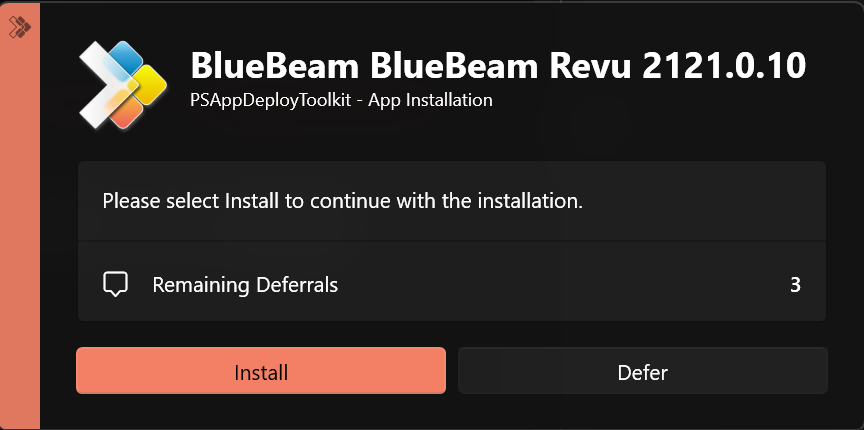
Check logs before packaging
After testing locally, check the PSADT log and MSI log. This is much easier than waiting for Intune to fail and then guessing what happened.
- Confirm PSADT started with the expected deployment type: Install or Uninstall.
- Confirm it used the Bluebeam MSI from the package.
- Confirm the MSI returned success, usually exit code
0. - Check whether a restart was requested, for example
3010. - Fix local errors before uploading anything to Intune.
Package the PSADT folder as .intunewin
After the local install and uninstall tests passed, I used the Microsoft Win32 Content Prep Tool to package the PSADT source folder.
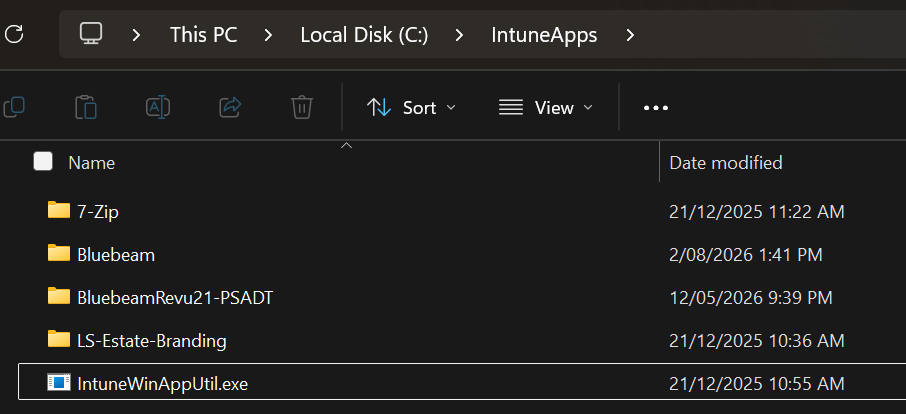
IntuneWinAppUtil.exe outside the Bluebeam source folder.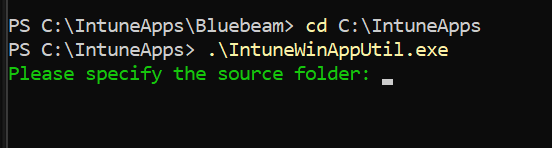
cd C:\IntuneApps
.\IntuneWinAppUtil.exe
When the tool asks questions, I used these values:
Source folder:
C:\IntuneApps\Bluebeam

Setup file:
Invoke-AppDeployToolkit.exe

Output folder:
C:\IntuneApps\Output

Catalog folder:
N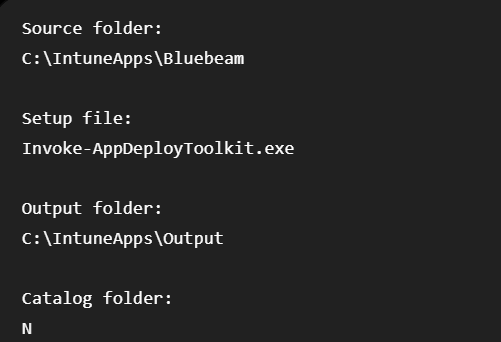
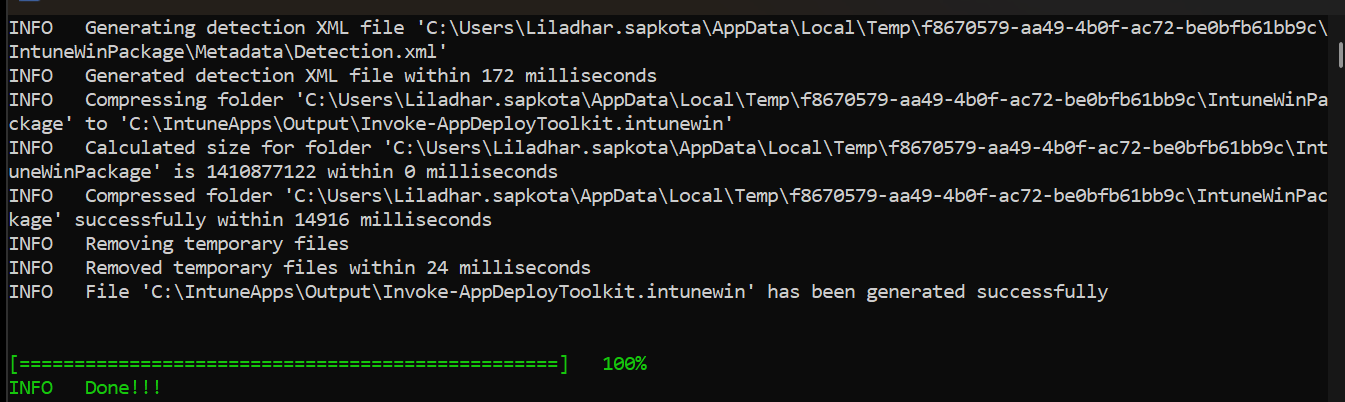
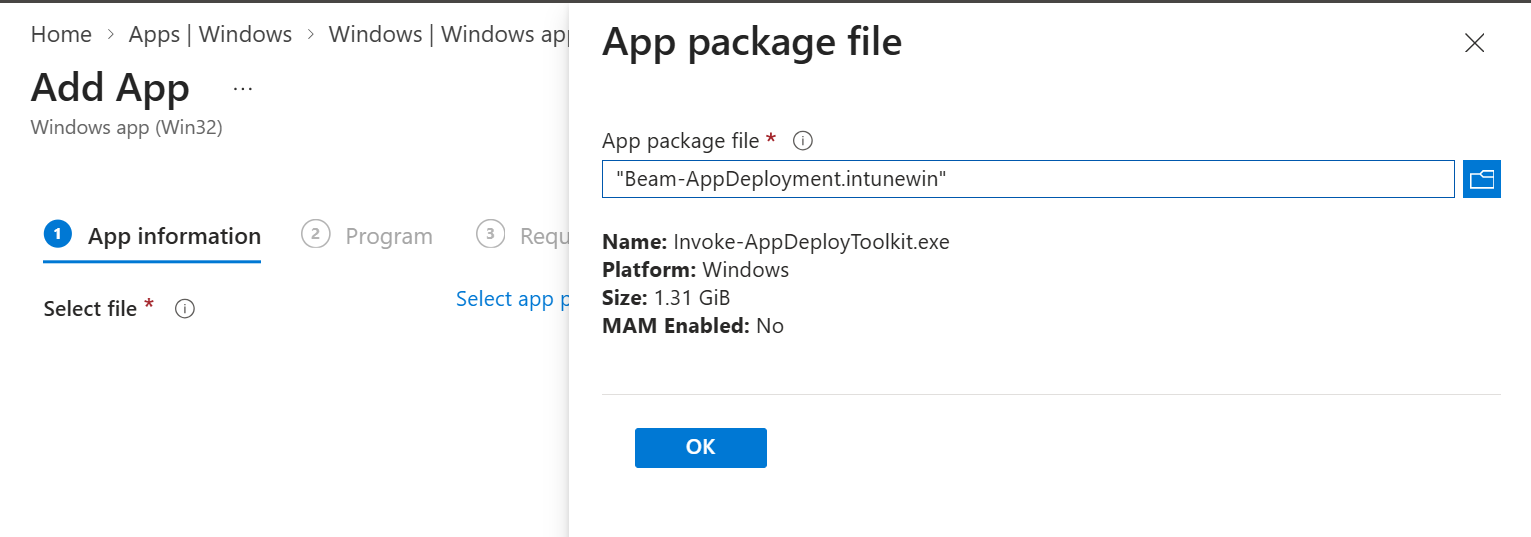
.intunewin package was generated successfully.Invoke-AppDeployToolkit.intunewin. In my Intune upload screenshot, the selected file is named Beam-AppDeployment.intunewin. Renaming the finished .intunewin file is okay; Intune still reads the setup file metadata inside the package.
Upload the package to Intune
- Open Intune admin center > Apps > Windows > Create.
- Select Windows app (Win32).
- Upload the generated
.intunewinpackage. - Enter the app name, description, publisher, and version.
- For this beginner guide, skip custom company branding or a company logo until the deployment works.
Configure install and uninstall commands in Intune
The Intune Program page should call the PSADT executable, not the MSI directly. Intune runs PSADT, and PSADT runs the Bluebeam MSI inside the script.
Install command:
Invoke-AppDeployToolkit.exe -DeploymentType Install -DeployMode Auto

Uninstall command:
Invoke-AppDeployToolkit.exe -DeploymentType Uninstall -DeployMode Auto- Install behavior: System
- Device restart behavior: Determine behavior based on return codes
- Return code 0: Success
- Return code 1641: Hard reboot
- Return code 3010: Soft reboot
- Return code 1618: Retry
DeployMode Auto for Intune. This lets PSADT show the user-friendly install experience when a user session is available, while still behaving safely when Intune needs to run in the background.
Add a simple detection rule
Detection is how Intune decides whether Bluebeam is already installed. PSADT installs the app, but Intune detection confirms the final state.
For a beginner MSI deployment, start with one of these detection methods:
- MSI detection: use the MSI product code if Intune reads it from the package and it matches the version you are deploying.
- File detection: detect a known Bluebeam executable path and version after you confirm it on the test device.
- Registry detection: detect the uninstall registry key if that is more reliable for your environment.
Troubleshoot install or uninstall failures
Use both log sets:
- PSADT logs: check the deployment type, mode, commands, and toolkit exit code.
- MSI logs: check the actual Bluebeam installer result.
- Intune Management Extension logs: check policy, download, execution, detection, and reporting under
C:\ProgramData\Microsoft\IntuneManagementExtension\Logs.
| Symptom | First check |
|---|---|
| Works manually but fails in Intune | Test with the same install command and use System context in Intune. |
| Application installed but Intune reports failed | Fix the detection rule. Install success and detection success are separate checks. |
| PSADT dialog does not appear | Confirm DeployMode Auto, a signed-in user session, and whether the app is running in ESP/OOBE. |
| Install hangs | Check whether the MSI is waiting for a prompt or another installer process is already running. |
| Uninstall does nothing | Confirm the MSI file supports uninstall, or use a product code based uninstall after testing. |
| Exit code 1603 | Read the MSI log for the actual failure. Check pending restart, permissions, old version, or custom actions. |
Part 1 beginner checklist
- Bluebeam MSI is inside the PSADT
Filesfolder $adtSessionmetadata has the real app name, version, architecture, and process name- Install command uses
Start-ADTMsiProcess -Action Install - Uninstall command uses
Start-ADTMsiProcess -Action Uninstall - Install works interactively on a test device
- Install works silently before Intune deployment
- Uninstall works silently before Intune deployment
- Win32 package is created from
C:\IntuneApps\Bluebeam - Intune install and uninstall commands call
Invoke-AppDeployToolkit.exe - Detection rule is based on what exists on the test device after install
- Deployment is tested with a small pilot group first