Complete Windows Update Management Guide with Intune

Why You Need a Windows Update Strategy
Without a proper update strategy, you're gambling with employee productivity. This guide shows you how to build a three-ring update system that catches problems early and keeps your business running.
All steps are production-tested and follow Microsoft's latest recommendations (January 2026).
- ✓ Automatic monthly updates that flow safely
- ✓ 30-day safety net to roll back bad updates
- ✓ Driver updates that don't break devices
- ✓ Clear plan for deploying Windows 11 25H2
- ✓ Emergency response when things go wrong
- ✓ Real troubleshooting from production
What You Need Before Starting
- Microsoft Intune license (standalone or part of Microsoft 365 E3/E5)
- Microsoft Entra ID P1 or P2 for dynamic groups
- Windows 10/11 Pro, Enterprise, or Education devices
- Global Administrator or Intune Administrator access
- Device groups created for IT staff and early adopters
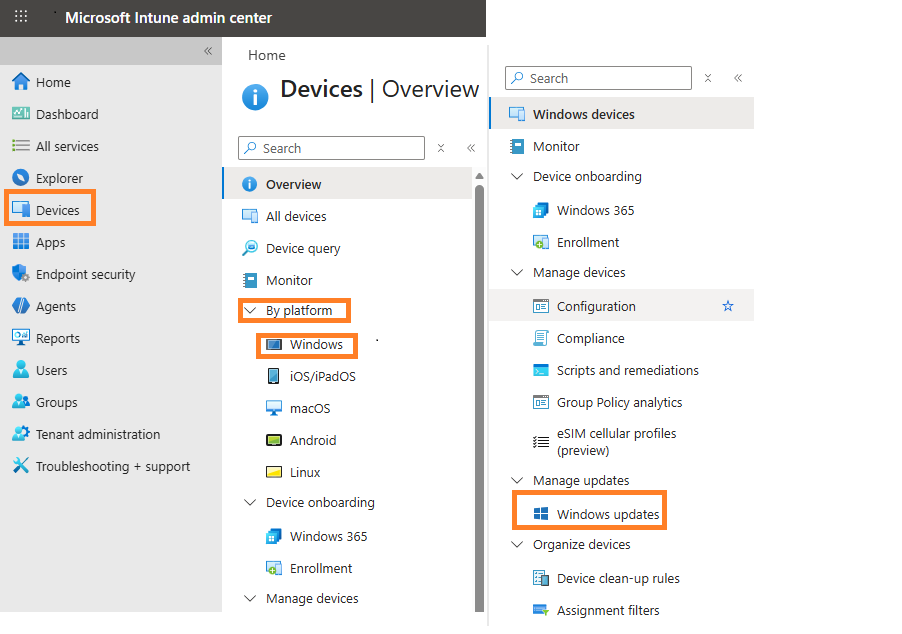
Create Ring 1 (Critical IT)
The first ring is for IT staff only. They catch issues before anyone else sees them.
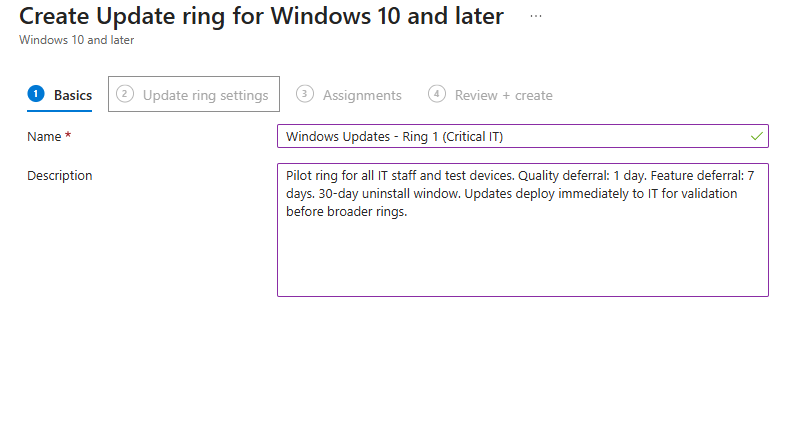
Basics Tab Configuration
How we set this up in production: We name the policy "Windows Updates - Ring 1 (Critical IT)" with a clear description that includes all deferral settings. This makes it easy to identify the policy purpose without opening it.
Update Ring Settings
How we set this up in production: We enable both Microsoft product updates and Windows drivers so IT tests everything together. Quality updates defer 1 day (quick validation after Patch Tuesday), feature updates defer 7 days, and we set a 30-day uninstall window as safety net.
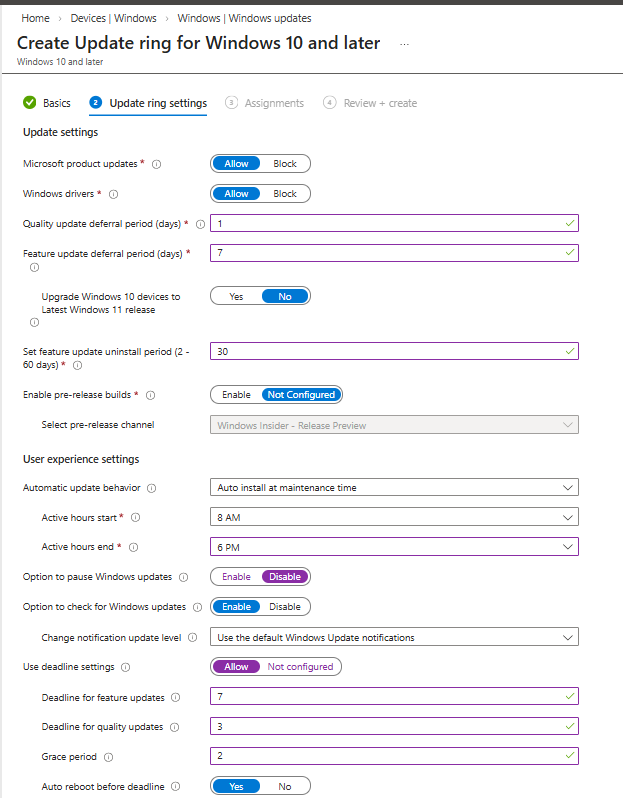
User Experience Settings
How we set this up in production: Updates install automatically during maintenance hours (8 AM-6 PM active hours). IT staff cannot pause updates because we need them to validate everything. Deadlines force quality updates within 3 days, feature updates within 7 days, with a 2-day grace period before auto-restart.
Assignments
How we set this up in production: Assign to Windows-update-Ring-1-IT-Devices device group. Always use device groups for update rings - they work even when no user is signed in.
Verify Ring 1 is Working
- On an IT device, go to Settings → Windows Update → Advanced options
- Check that "Defer feature updates" shows 7 days
- Check that "Defer quality updates" shows 1 day
- Verify the "Pause updates" option is greyed out (disabled)
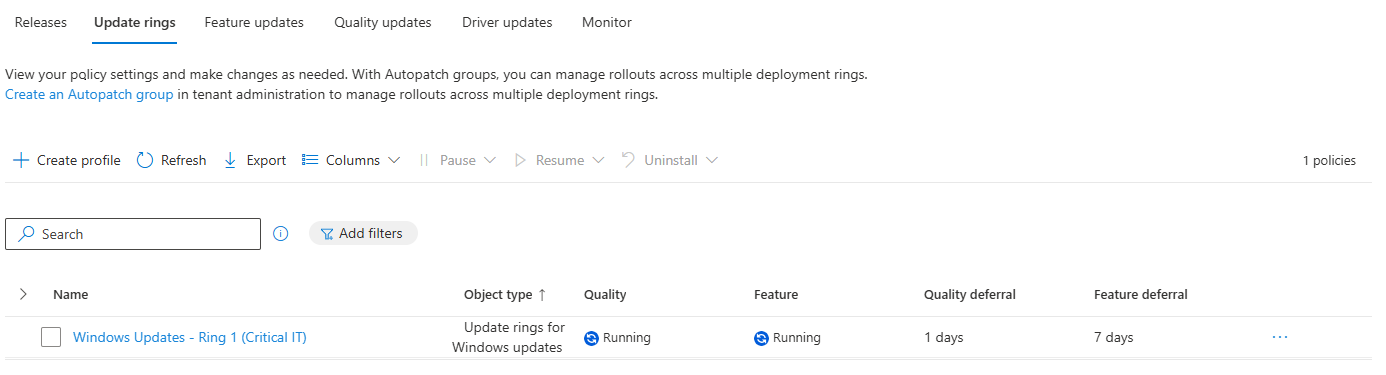
- In Intune, go to the Ring 1 policy and check "Device assignment status"
Create Ring 2 (Early Adopters)
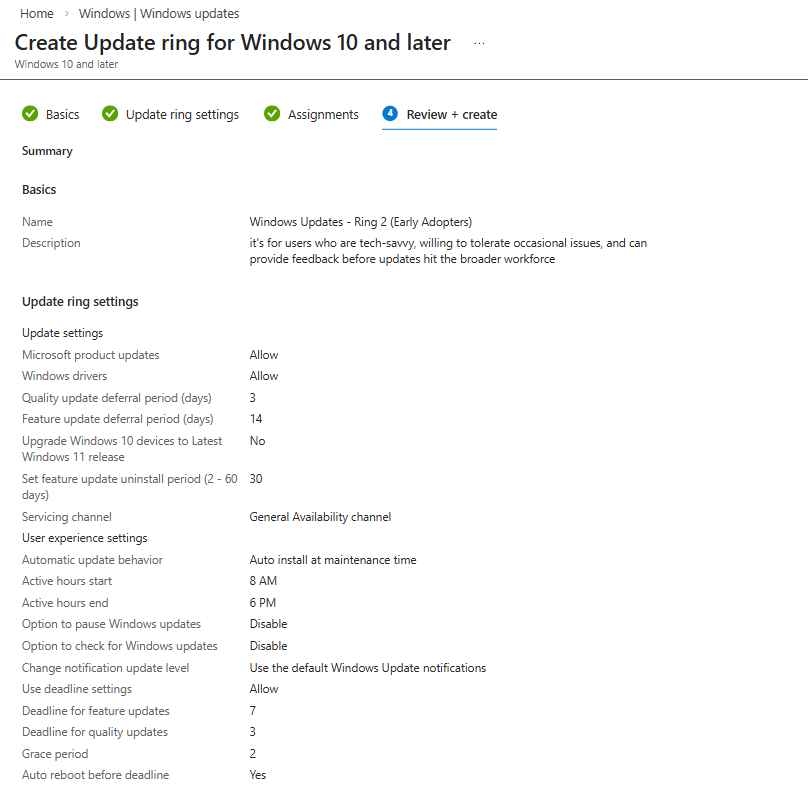
Ring 2 is for tech-savvy users who volunteer to test updates before everyone else. They represent different departments and catch issues that only appear in real-world work.
How we set this up in production: We create a separate ring for early adopters with quality deferral of 3 days (after IT validates), feature deferral of 14 days, and we enable pause capability so they can stop updates if work is disrupted.
Email Template for Early Adopters
Send this email before adding users to Ring 2:
Subject: You're in Windows Update Ring 2 (Early Adopters)
You've been selected as an early adopter for Windows updates. Here's what this means:
What changes:
• You'll receive quality updates 3 days after IT validates them
• You'll receive feature updates 14 days after release
• Updates install automatically during maintenance hours
• You CAN pause updates if they disrupt critical work (but please tell us why!)
Your responsibility:
• Report any issues immediately
• You're our early warning system for your department
Your safety net:
• You have 30 days to uninstall problematic updates
• IT Support is here if you need help
Create Ring 3 (Production Standard)
Ring 3 is for everyone else. These users get fully validated updates after IT and early adopters have tested them.
How we set this up in production: Production gets quality updates after 7 days (full validation window) and feature updates after 21 days. Pause capability is disabled because IT controls all production update timing.
Assignments for Ring 3
How we set this up in production: Include all devices except those in Ring 1 and Ring 2. Use device groups exclusively for all assignments.
Configure Driver Updates
Driver updates are separate from Windows updates. You need a Driver Updates policy to control which drivers install on your devices.
How we set this up in production: We set approval method to "Automatically approve all recommended driver updates" - Microsoft marks the safest drivers as "Recommended." We add a 3-day deferral to catch any bad drivers, then deploy to all devices.
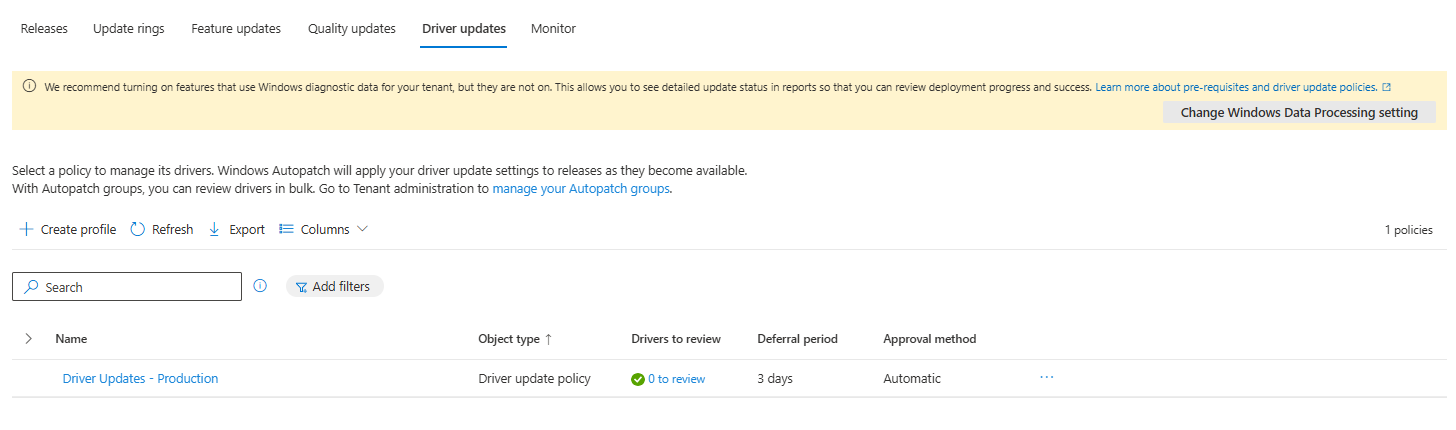
How Driver Updates Work
- Microsoft releases new drivers (for example, Dell updates a graphics driver)
- Microsoft classifies it as "Recommended" or "Other"
- Your policy checks: Is this driver Recommended?
- If yes, it waits 3 days (your deferral)
- After 3 days, the driver deploys to all devices automatically
Deploy Feature Updates (like Windows 11 25H2)
Update Rings control WHEN updates install. Feature Updates control WHICH VERSION installs. For major Windows versions like 25H2, you need a separate Feature Updates policy.
⚠️ CRITICAL: Fix Your Update Rings First
Before creating a Feature Updates policy, you MUST edit each of your three Update Rings and set Feature update deferral period to 0 days. Otherwise the Update Ring deferral overrides your Feature Updates policy.
Create the Feature Updates Policy (When 25H2 Releases)
- Go to Intune admin center → Devices → Windows updates → Feature updates tab
- Click '+ Create profile'
- Name: Feature Update - Windows 11 25H2 - Production
- Select 'Windows 11 25H2' from the dropdown (appears after Microsoft releases it)
- Choose rollout option (gradual rollout recommended for production safety)
- Assign to group: Windows-update-all-devices-Ring3>
- Click Create
For gradual rollout: Set first group availability date and final group availability date. Windows automatically creates groups and staggers them. If something breaks, only a few devices are affected.
Emergency Response: When an Update Breaks
Even with testing, bad updates sometimes slip through. Here's your step-by-step emergency plan.
Step 1: PAUSE (Minute 1)
Go to Ring 2 and Ring 3 policies → Click Pause → Select update type. This stops the bad update from reaching more devices for up to 35 days.
Step 2: UNINSTALL (Minute 5-15)
Go to affected Ring policy → Click Uninstall → Select update type. This removes the update from devices still within the 30-day uninstall window.
Step 3: INVESTIGATE (Hours to days)
Check Microsoft's Windows Release Health dashboard for known issues. Document the problematic KB, communicate to users, and wait for Microsoft to release a fixed version. Resume Ring 2 first to test the fix.
Emergency Playbook Summary
- Minute 1: Pause Ring 2 and Ring 3
- Minute 5: Check if devices can uninstall (within 30-day window)
- Minute 15: Click Uninstall on affected rings
- Hour 1: Document issue and notify stakeholders
- Day 1-2: Monitor for fixed version from Microsoft
- When fixed: Resume Ring 2 first, then Ring 3
Troubleshooting Common Issues
Simple Terms Explained
- Update Ring: A policy that controls when updates install and how devices behave (restarts, deadlines, user controls).
- Quality Updates: Monthly security patches released on Patch Tuesday (second Tuesday of each month).
- Feature Updates: Major Windows versions released twice per year, like 22H2, 23H2, 24H2, 25H2.
- Driver Updates: Updates for hardware like graphics cards, network adapters, and printers.
- Deferral Period: How many days to wait after Microsoft releases an update before offering it to devices.
- Uninstall Period: How many days users have to roll back a problematic update. After this expires, the old version is gone.
- Deadline: How many days after an update installs before a restart is forced.
- Safeguard Hold: Microsoft's automatic protection that blocks updates on devices with known compatibility issues.
Frequently Asked Questions
You're Done! What's Next
Congratulations! You've built an enterprise-grade Windows update system that automatically manages monthly security updates, gives you a 30-day safety net for rollbacks, handles driver updates safely, and prepares you for major Windows releases like 25H2.
Your ongoing tasks:
- Monitor update reports weekly (check for any devices showing "Error" status)
- When 25H2 releases, create the Feature Updates policy
- Review your deferral periods once per year