Automate HR to Entra ID Onboarding with Azure Logic Apps: Part 1

Why I built this
I wanted a simple way for HR to submit a new starter once, then let automation do the boring identity work in a controlled way. The goal was not to create a fancy demo. I wanted something I could actually test: HR adds a SharePoint item, the Logic App validates the request, creates the Entra account, writes the result back, and emails the right people.
This is Part 1, so I am keeping it beginner friendly. I will show the design, the fields I used, the safety checks, and the testing approach. I am not publishing my full workflow export here. The JSON file stays private because that is my working template and I may release it later as a paid package.
The simple flow
The workflow is easy to understand when you think of it as a small handover between HR, IT, SharePoint, Logic Apps, Entra ID, and email.
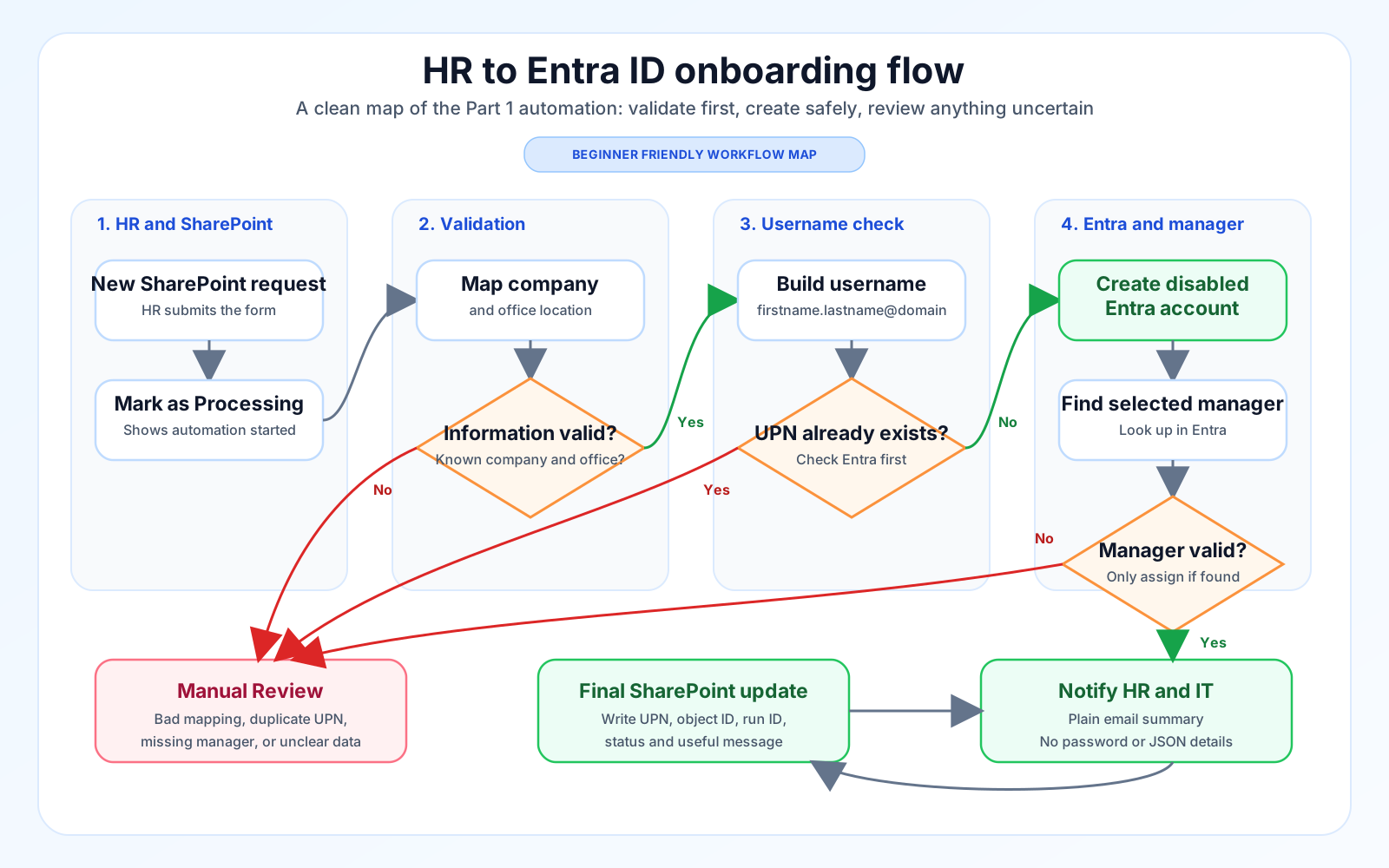
- HR creates a new onboarding request in SharePoint.
- The Logic App marks the item as processing so everyone knows it has started.
- Company and office location are mapped to the correct Entra values.
- The workflow builds the username and checks whether the UPN already exists.
- If everything is clean, it creates a disabled Entra account for IT review.
- If something does not look right, it stops safely and sends the request to manual review.
How the real Logic App looks
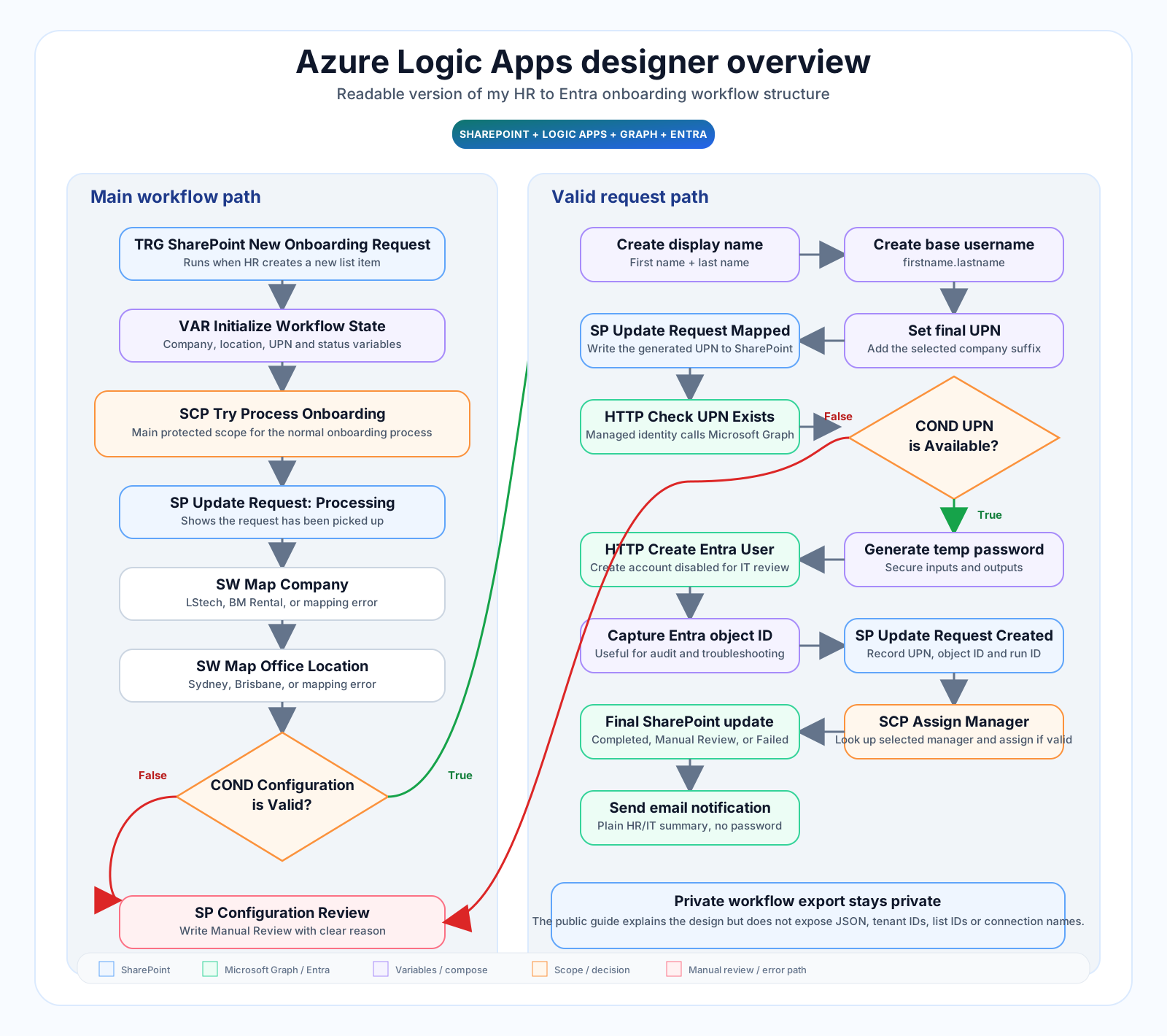
This is the actual design view from my working build. I like this layout because every important decision has a visible step: trigger, variables, company mapping, location mapping, validation, UPN check, Entra user creation, and manager assignment.
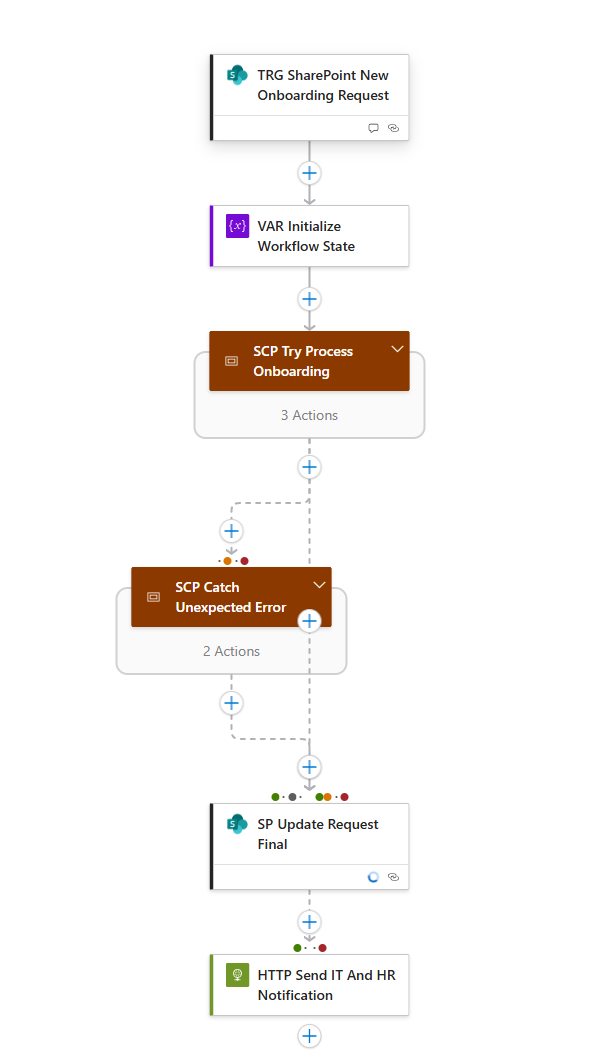
Below is the real workflow shape from my build. The important beginner lesson here is the structure: I use a main Try scope for the normal onboarding work, a Catch scope for unexpected errors, then one final SharePoint update and one notification step.
What I prepared first
Before touching the Logic App designer, I prepared the boring pieces. This saved me a lot of guessing later.
- A SharePoint list for HR onboarding requests.
- A dedicated SharePoint connection account for the Logic App connector.
- An Azure resource group for the Logic App and related connection resources.
- A Logic App Consumption workflow with system-assigned managed identity enabled.
- Admin approval for the Microsoft Graph permissions used by the managed identity.
- A sender mailbox or shared mailbox for onboarding notifications.
- A small pilot test group so I was not testing on real new starters first.
Can I import the SharePoint list instead of creating every column manually?
Yes, but there are a few options and I would not treat them all the same:
- From existing list: good after you have one working onboarding list. Microsoft says this copies the list structure such as columns, views, and formatting, but it does not copy the existing data.
- From Excel or CSV: useful for a first draft or demo list, but check every column type afterwards. Also remember that if you upload the Excel or CSV file from your device, Microsoft says the original file is saved in the site assets area, so other people with access may be able to see that source file.
- Microsoft Graph: best for a repeatable admin/developer setup because Graph can create a SharePoint list and custom columns, but that needs proper permissions and testing.
Should this be a SharePoint list or a folder?
For this HR onboarding scenario, use a SharePoint List. A list item is perfect for fields like FirstName, LastName, Department, StartDate, ManagerEmail, RequestStatus, UPN, EntraObjectId, WorkflowRunId, and ErrorMessage.
SharePoint can work with folders, and Microsoft's SharePoint connector does support file and folder operations. But those are different from a clean HR request form. Folder-based triggers are mainly for document library/file scenarios, while this onboarding process depends on list item fields. Microsoft also marks the older folder-specific file triggers as deprecated, and those triggers do not fire for files added inside subfolders. So I would not build this onboarding form as a folder-based process.
Create the Logic App and turn on identity
I used a Consumption Logic App for this first version because it is simple, easy to follow, and good enough for a beginner onboarding workflow.
- Create a new Logic App in Azure.
- Select Consumption for the workflow type.
- Open Identity and enable the system-assigned managed identity.
- Copy the managed identity object ID because the identity team will need it for Microsoft Graph permissions.
- Create the SharePoint connector connection using the dedicated automation account.
Map company and office location
This is where the workflow becomes useful. HR chooses normal business values, and the Logic App converts them into the values Entra needs.
| HR selection | Entra values I map |
|---|---|
| Sydney | City Sydney, State NSW, Country Australia, Usage location AU |
| Brisbane | City Brisbane, State QLD, Country Australia, Usage location AU |
| LStech | Company LStech and the correct UPN suffix for that company |
| BM Rental | Company BM Rental and the correct UPN suffix for that company |
If the company or location is unknown, I do not let the workflow create a half-correct user. I write Manual Review back to SharePoint with a useful message.
Build the username and check for duplicates
The workflow creates a simple username from first name and last name, then joins it with the company UPN suffix. After that it checks Entra to see whether the UPN is already taken.
Example idea:
First name: Logic
Last name: Testuser
Generated username: logic.testuser
Final UPN: logic.testuser@selected-company-domain
If the UPN already exists, the workflow stops and marks the request as manual review. I prefer that over auto-adding random numbers, because HR and IT should decide the final username format.
Create the disabled Entra account
For the first version, I create the Entra user as disabled. This gives IT a clean review point before the person actually starts. It also lowers the risk if HR entered the wrong start date, manager, or department.
- Create display name from first name and last name.
- Set job title, department, company, office location, city, state, country, and usage location.
- Generate a temporary password inside the workflow.
- Protect password-related actions with secure inputs and secure outputs.
- Do not write the temporary password back to SharePoint.
- Do not send the temporary password by email.
Find and assign the manager
Manager assignment is one of those small details that makes onboarding feel complete. In my build, the workflow looks up the selected manager and only assigns it when the manager is valid.
- If the manager exists, assign the manager relationship in Entra.
- If the manager is missing or unclear, mark the item for manual review.
- Write a clear message back to SharePoint so IT knows what to fix.
Update SharePoint once at the end
One thing I changed in this design is that the final SharePoint update happens once. The workflow still writes processing early, but the normal final result is written in one place. This makes it easier to read and easier to troubleshoot.
- Completed: user created, UPN written back, object ID captured, and notification sent.
- Manual Review: duplicate UPN, bad mapping, missing manager, or anything that needs IT decision.
- Failed: unexpected failure with run ID and a bounded error message.
Send a useful email, not a scary one
The notification should be readable by HR and IT. I keep it simple: name, job title, department, start date, manager, office location, and the current status.
Permissions I keep separate
This part matters. The Logic App can become too powerful very quickly if everything is granted broadly. I split the responsibilities.
| Task | Identity | My rule |
|---|---|---|
| Read new HR request | SharePoint connector account | List-level access only where possible. |
| Update SharePoint result | SharePoint connector account | Write only to the onboarding list. |
| Create and update Entra user | Logic App managed identity | Use approved Microsoft Graph application permissions. |
| Send notification email | Logic App managed identity | Scope sending to approved mailbox if your tenant supports it. |
How I tested Part 1
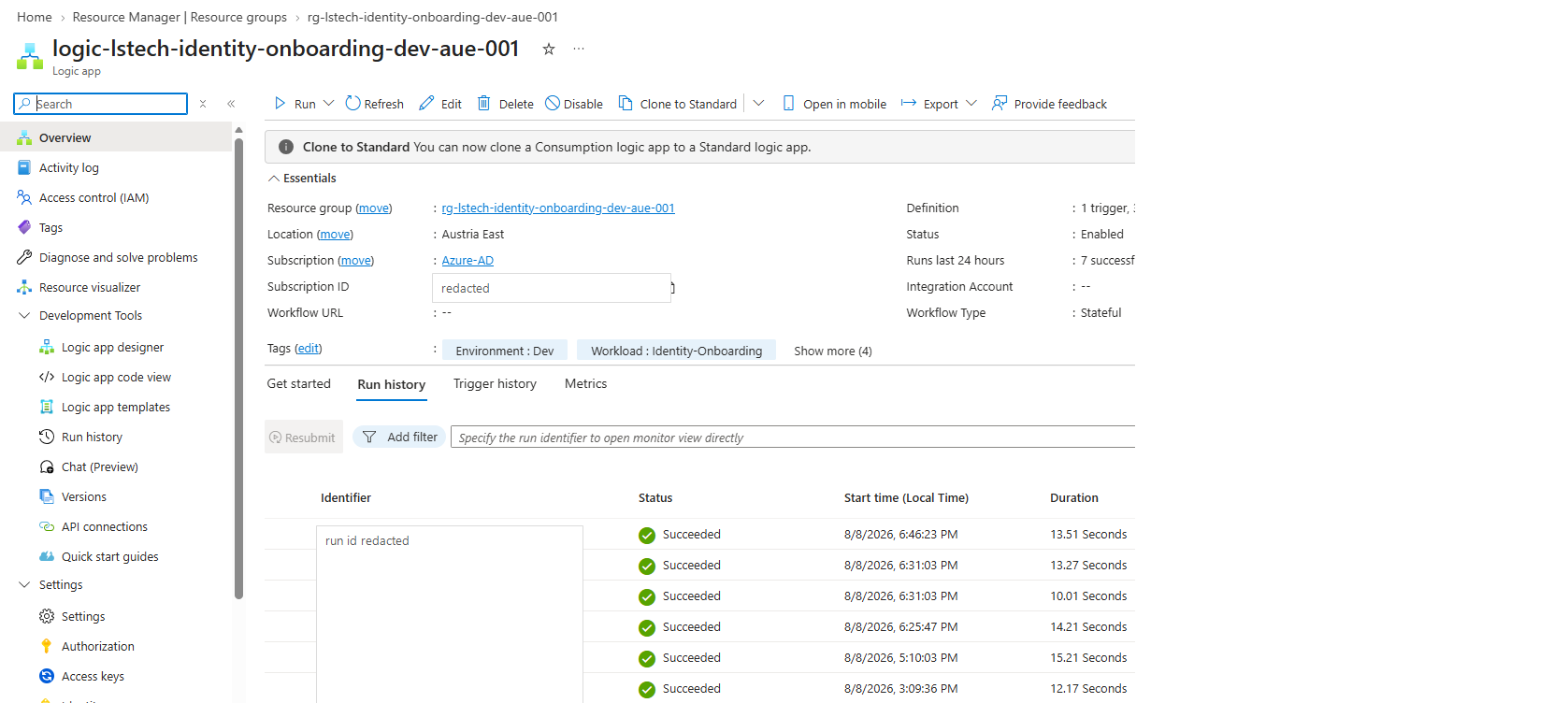
I tested small scenarios first. This is much better than building the whole workflow and then trying to guess which action failed.
| Test | What I expect |
|---|---|
| Happy path | SharePoint request becomes Completed and Entra user is created disabled. |
| Duplicate UPN | No new user is created and the item becomes Manual Review. |
| Unknown company | The workflow stops before user creation and explains the missing mapping. |
| Unknown office | The workflow stops before user creation and explains the missing location mapping. |
| Manager not found | The request goes to Manual Review instead of pretending everything is fine. |
| Automatic trigger delay | Consumption polling can take a few minutes, so I check trigger history before changing random settings. |
Mistakes I would avoid next time
- Do not expose the workflow JSON export publicly.
- Do not hardcode tenant-specific IDs into a guide or public page.
- Do not give the SharePoint connector account more access than it needs.
- Do not create enabled accounts automatically in Part 1 unless your review process is already mature.
- Do not skip duplicate UPN checks.
- Do not hide errors in the Logic App run only; write a useful message back to SharePoint.
Part 1 checklist
- SharePoint onboarding list created with clear internal column names.
- RequestStatus choices include Processing, Completed, Manual Review, and Failed.
- Logic App Consumption workflow created.
- System-assigned managed identity enabled.
- SharePoint connector uses a dedicated automation account.
- Company and location mapping tested with known values.
- Duplicate UPN check tested.
- New Entra account is created disabled.
- Manager assignment tested with valid and invalid manager values.
- Final SharePoint update writes UPN, object ID, run ID, and a clear status.
- No JSON export, password, tenant ID, connection ID, or private workflow file is linked from the public page.